Configuration, Settings & Shortcuts
This chapter provides a complete reference across all configuration panels in sshs3, details the 2D Spatial Keyboard Navigation system, and includes an autogenerated reference table of all keyboard shortcuts extracted directly from the application source code.
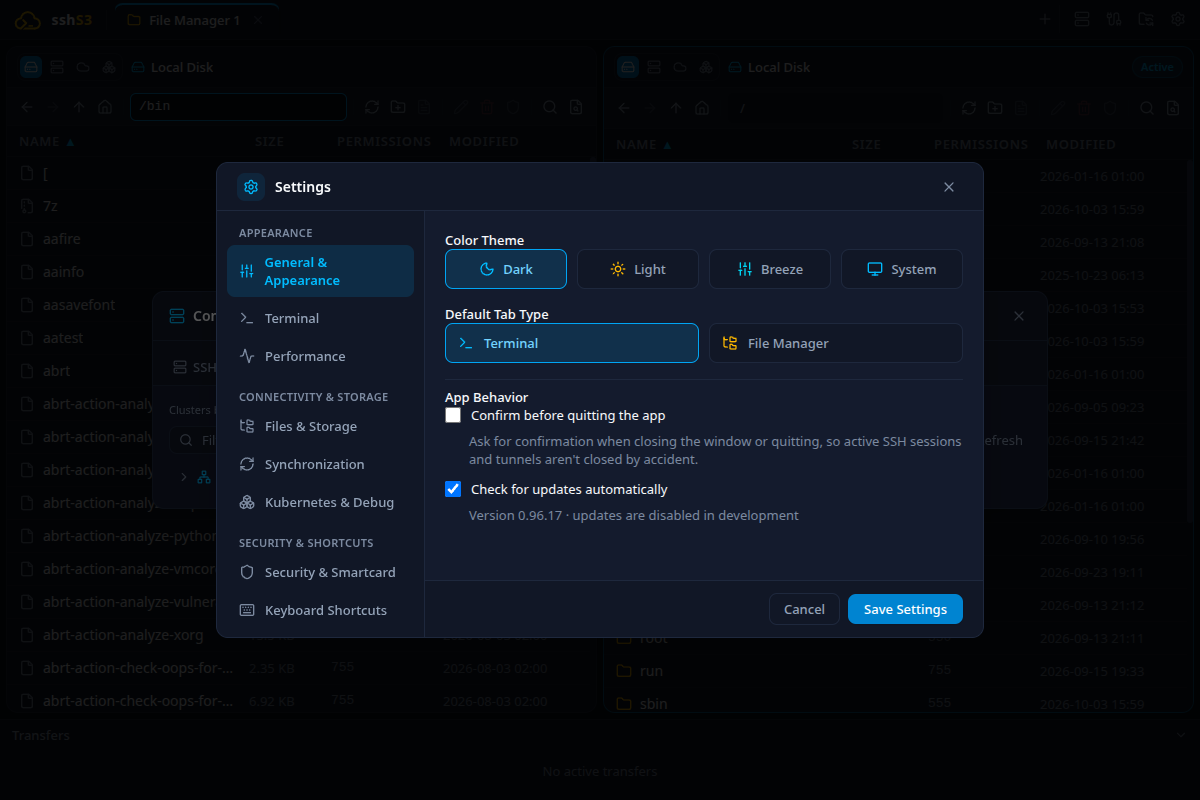
1. Global Preferences Panels (Ctrl+,)
Access the preferences dialog via the gear icon in the top toolbar or via the keyboard shortcut Ctrl+,.
Settings that an administrator has locked show Managed by your organization and cannot be changed here. See Enterprise Deployment & Policy.
Closing Settings with changes you have not saved (Escape, Cancel, the close button, or a click outside) asks Discard unsaved changes; Keep editing returns to the dialog, Save Settings stores the changes.
Instant Settings Filter
The Settings modal features a real-time search filter at the top of the sidebar. Typing a keyword filters the 11 settings categories by their names (for example git shows Git & GitHub), so you can jump straight to a category. Individual option titles and descriptions are not searched.
1.1 General & Appearance
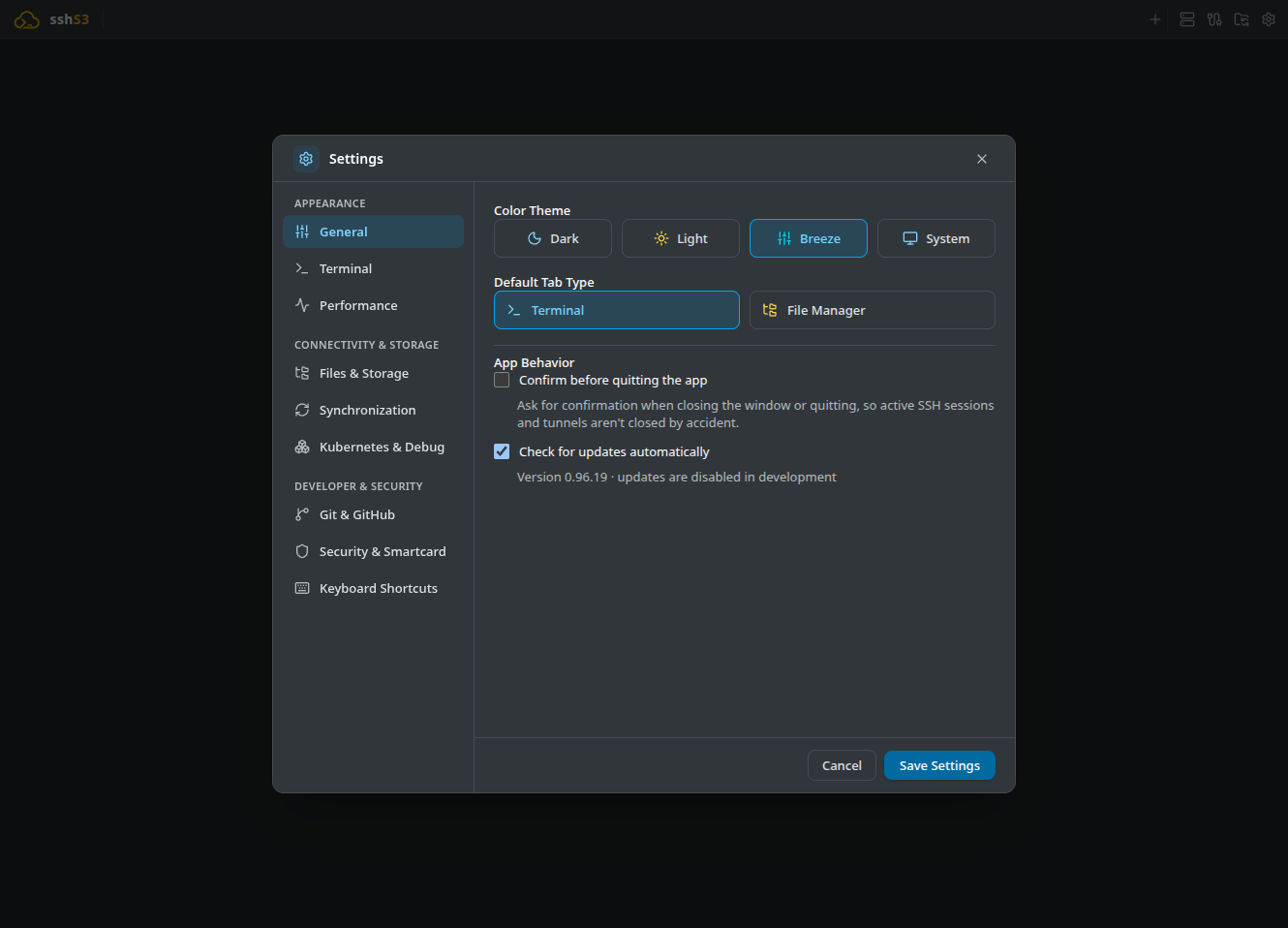
- Color Theme: Dark (slate dark), Light (clean gray), Breeze (KDE-inspired theme with cyan accents), or System (tracks OS dark/light mode).
- Default Tab Type: Whether opening a blank tab launches a Terminal or a File Manager.
- Confirm Before Quitting: Warns if active terminal sessions or background file transfers are in progress when closing the window.
- Enable Global Search: On by default. Shows the magnifier in the top bar and enables Ctrl+Shift+G (see Global Search). Switched off, the key combination is left free for other uses.
- Check for Updates Automatically: Checks GitHub Releases in the background every 6 hours; Check now, Download, and Restart and install are explicit actions. Permanently locked off when
SSHS3_DISABLE_UPDATES=1is set. - Application Logging: Configures log verbosity (Errors only, Warnings, Normal, Debug). Rotated at 5 MB (last 5 kept). PINs, passwords, and private keys are strictly never logged. Open log folder opens the log directory, and Copy diagnostics copies a diagnostics summary to the clipboard for a bug report.
1.2 Terminal
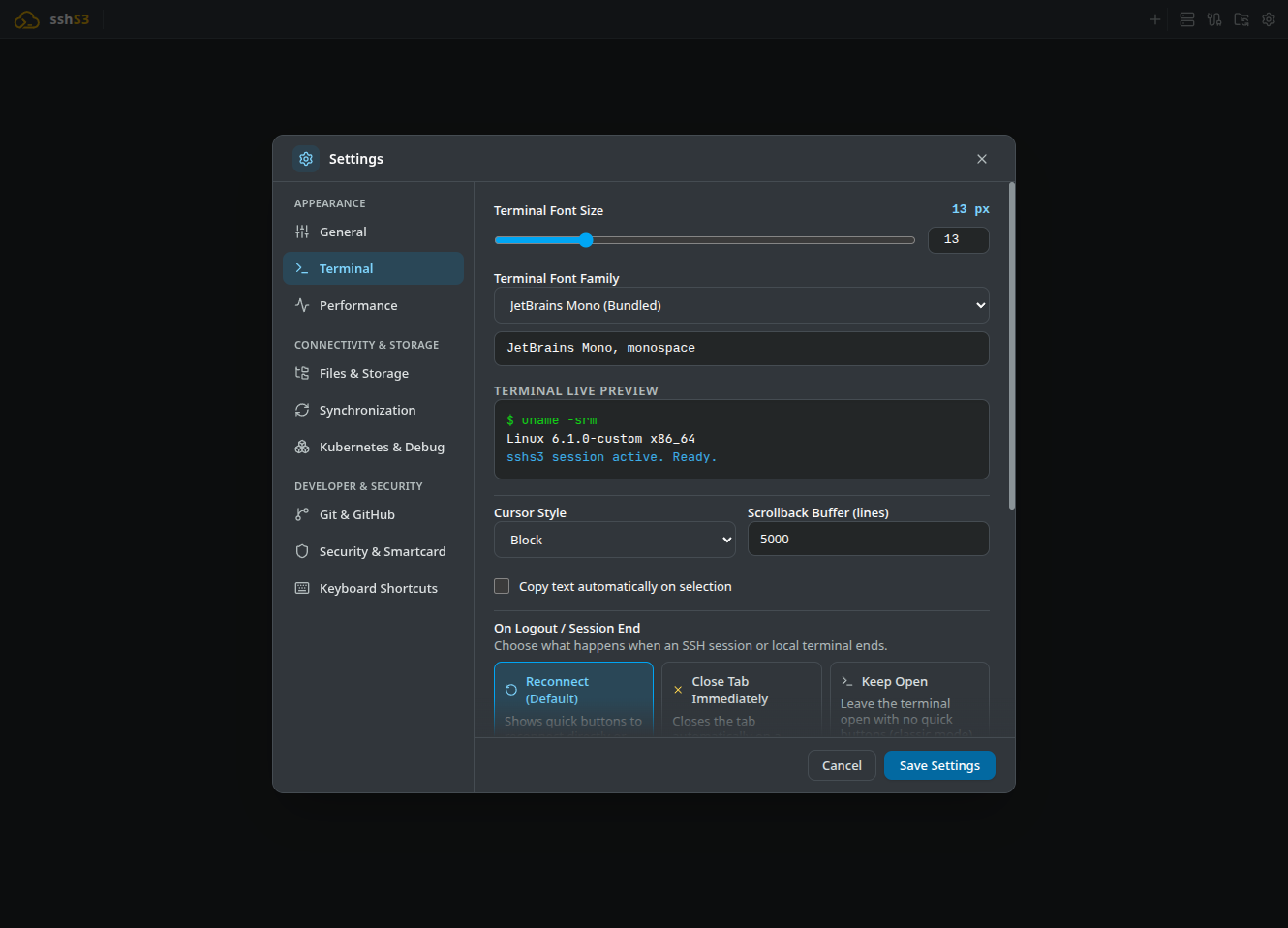
- Typography: Configurable font family and font size (8-32 px) with live preview render.
- Cursor Style: Block, Underline, or Vertical Bar.
- Scrollback Buffer: Retained history per terminal pane (default 5,000 lines; 500-50,000 in steps of 500, and a typed value is adjusted to the nearest allowed one when you leave the field). Searchable with Ctrl+Shift+S.
- Copy text automatically on selection: Copies highlighted terminal text to the clipboard and stores it in the encrypted clipboard history. Scope can be Global or Per Host, and Clear history deletes every entry after a confirmation. The setting also applies to the Markdown preview in the file editor, which copies to the clipboard only (nothing goes into the history).
- Session End Behavior: Reconnect (Default), Close Tab Immediately, or Keep Open.
- Local Terminal SSH Agent: Selects
$SSH_AUTH_SOCKinjection for local workstation shell tabs: Auto (AppAgentunder Global PIN caching), System Only, or Disabled. - Local X11 Server (GUI Forwarding): Shows whether a local X server is running (Running with its display, or Stopped) and refreshes on demand. See Graphical X11 Forwarding for the setup.
- Keep
~/.ssh/configin Sync: On by default. Maintains a marked block in your local~/.ssh/configat startup and whenever an SSH profile is saved, deleted or imported, sossh <profile>works in any external terminal. Only the sshs3 block is touched.
1.3 Performance
- Show Performance Bar Above Terminals: Toggles real-time host telemetry. Select layout (Compact Text, Bars, Sparklines), update interval (2s, 5s, 10s, 30s), and custom metrics.
1.4 Files & Storage
- Show Hidden Files and Dotfiles: Toggles visibility of hidden files (
.git,.env). - Confirm Before Deleting Files and Folders and Verify File Integrity and Size After Transfer: Both on by default.
- Default Conflict Resolution: Automatic policy for filename collisions: Ask (default), Overwrite, Skip, or Rename.
- Share folders between SSH/SFTP and S3 in Connection Manager: Off by default, so each tab shows only the folders that contain a profile of its own type. Turn it on to use one shared folder tree for both connection types.
- Transfers run up to 3 files in parallel (this is not configurable).
- Dotfiles Pool Sync: Opt-in session staging for personal shell configuration files.
1.5 Security & Smartcard
- PIN Caching Policy: Always Prompt (Default), Once Per Terminal Connection, or Global (App Lifetime). Under Global, all unlocked smartcards and FIDO2 keys reside in a single app-wide
ssh-agent(AppAgent). - Detected PKCS#11 Libraries: Scans system libraries (
p11-kit,opensc,libykcs11, Net iD) with 1-click Rescan.
1.6 Kubernetes & Debug
- Red Hat OpenShift support toggle, default diagnostic container presets for
kubectl debug(Netshoot, RHEL Support Tools, BusyBox, Curl, Ubuntu).
1.7 AWS
- Enable AWS features switch (off by default), saved IAM Identity Center sign-ins with status and Sign in, regions to search, proxy and CA for AWS calls, and the AWS CLI and plugin status. The workflow is described in SSH over AWS Systems Manager.
1.8 Synchronization
- Sets up the target for encrypted Remote Profile Sync (S3 or SFTP) and offers Push and Pull. Changes in this category save immediately. See Environment & Profile Synchronization.
1.9 Team Vault
- Lists your teams and lets you create or join one, unlock it, and manage its members and storage target. Changes in this category save immediately. See Team Vault.
1.10 Git & GitHub
- Developer SSH Keys & Git Providers: copy a public key or register it on GitHub or GitLab, and set the key used for commit signing (Git Sign).
- SFTP & File Manager Git Integration: a switch that shows or hides the Git branch and Git actions in the SFTP and file manager panes.
- Lookup Public Keys (username.keys): fetch a user's public keys with Fetch keys.
- See Git Integration & Developer Tooling.
2. 2D Spatial Keyboard Navigation & Mouse-Free Ergonomics
The application is engineered to be fully operable without a mouse:
Spatial Focus Navigation (Ctrl+Shift+Arrows)
- Shifts focus spatially in the direction of the pressed arrow across split panes, tabs, dual file manager panes, menus, and dialogs.
- Tab Bar Escape: Pressing Ctrl+Shift+Up from the top row of splits moves focus directly into the Tab Bar (where Left/Right switches active tabs, and Down or Enter returns focus into the active tab).
- In Dialogs & Modals: Ctrl+Shift+Arrows moves focus between fields, dropdowns, and buttons even while typing inside a text input field!
Universal Keyboard Actions
- Open / Execute (Enter): Activates whatever element is currently focused: enters folders, connects profiles, toggles checkboxes, and clicks focused buttons.
- Dismiss / Back (Escape): Closes open menus, popups, and modal dialogs, cleanly restoring keyboard focus back to the exact element or terminal pane you came from.
- Tab Navigation (Ctrl+1…Ctrl+8, Ctrl+9 for last tab): Direct jumping to open workspace tabs.
Technical Architecture: 2D Geometric Spatial Scoring
spatialNavigation.ts reads the bounding boxes (getBoundingClientRect) of all candidate focusable elements. For the pressed arrow, it scores each candidate in that direction by its gap along the axis plus a weighted orthogonal offset (candidates that do not overlap the current element are penalized). The candidate with the lowest geometric score wins focus.
3. Keyboard Shortcuts Reference Table
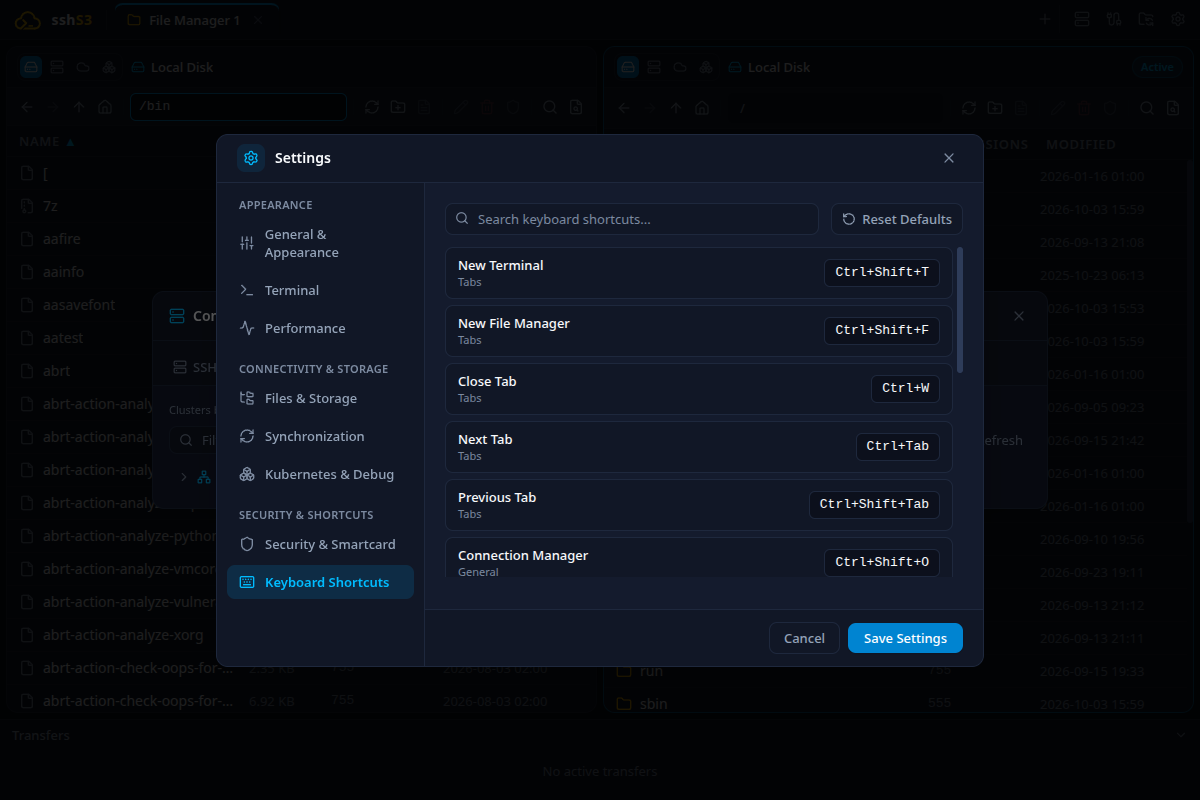
If your desktop environment (e.g. GNOME or Windows) binds a combination globally, rebind the action under Settings → Keyboard Shortcuts.
The window cannot be made smaller than 1024 × 600 pixels; at the minimum width the file manager toolbar wraps onto a second row.
The table below is autogenerated directly from the application source code during every documentation build to guarantee 100% accuracy with runtime keybindings.
| Action / Command | Default Shortcut | Category | Internal Action ID |
|---|---|---|---|
New Terminal | Ctrl+Shift+T | Tabs | newTerminal |
New File Manager | Ctrl+Shift+F | Tabs | newFileManager |
New Remote File Manager | Ctrl+Alt+Shift+F | Tabs | newRemoteFileManager |
New Window | Ctrl+Alt+Shift+N | Tabs | newWindow |
Tab Actions (Move to Window) | Ctrl+Alt+Shift+K | Tabs | openTabMenu |
Move Tab to New Window | Ctrl+Alt+Shift+M | Tabs | moveTabToNewWindow |
Close Tab | Ctrl+Shift+W | Tabs | closeTab |
Next Tab | Ctrl+Tab | Tabs | nextTab |
Previous Tab | Ctrl+Shift+Tab | Tabs | prevTab |
Keyboard Shortcuts | Ctrl+Shift+H | General | showShortcuts |
Connection Manager | Ctrl+Shift+O | General | openProfiles |
Settings | Ctrl+, | General | openSettings |
Navigate Left (Split / Panel) | Ctrl+Shift+Left | General | navigateLeft |
Navigate Right (Split / Panel) | Ctrl+Shift+Right | General | navigateRight |
Navigate Up (Split / To Tabs) | Ctrl+Shift+Up | General | navigateUp |
Navigate Down (Split / Into Tab) | Ctrl+Shift+Down | General | navigateDown |
Split Terminal Vertically | Ctrl+Shift+D | Terminal | splitVertical |
Split Terminal Horizontally | Ctrl+Shift+E | Terminal | splitHorizontal |
Close Split Pane | Ctrl+Alt+Shift+W | Terminal | closePane |
Zoom Split Pane | Ctrl+Shift+Z | Terminal | zoomPane |
Next Split Pane | Ctrl+Shift+N | Terminal | nextPane |
Previous Split Pane | Ctrl+Shift+P | Terminal | prevPane |
Increase Font Size | Ctrl++ | Terminal | increaseFontSize |
Decrease Font Size | Ctrl+- | Terminal | decreaseFontSize |
Reset Font Size | Ctrl+0 | Terminal | resetFontSize |
Clipboard History | Ctrl+Shift+R | Terminal | clipboardHistory |
Search in Terminal | Ctrl+Shift+S | Terminal | terminalSearch |
Copy Last Command Output | Ctrl+Shift+Y | Terminal | copyLastOutput |
Re-run Last Command with sudo | Ctrl+Shift+X | Terminal | rerunWithSudo |
Snippets | Ctrl+Shift+L | Terminal | snippets |
Search in Files | Ctrl+Shift+K | General | searchInFiles |
Search Profiles, Tabs and Hosts | Ctrl+Shift+G | General | globalSearch |
Open SFTP for Active Pane | Ctrl+Alt+Shift+S | Terminal | openPaneSftp |
4. Troubleshooting & Diagnostics
| Symptom / Error | Probable Root Cause | Corrective Action |
|---|---|---|
| Settings do not persist after restart | File permissions locked on settings.json | Check permissions on ~/.config/sshs3/settings.json. |
| Shortcut conflicts with window manager | Global OS hotkey intercepts keydown event | Open Settings → Keyboard Shortcuts, click the action, and record a custom combination. |
| Terminal text appears distorted | Selected font is proportional | Choose a fixed-width monospace font (e.g. JetBrains Mono, Fira Code, Consolas). |