Environment & Profile Synchronization
sshs3 provides synchronization tools designed to keep your terminal shell settings and connection profiles synchronized across multiple workstations without compromising privacy or relying on third-party cloud accounts.
1. Dotfiles Pool Sync (Opt-In)
Reconfiguring .bashrc, custom aliases, .vimrc, or .tmux.conf on hundreds of remote servers is tedious. sshs3 offers an opt-in Dotfiles Pool Sync:
- Open Settings → Files & Storage, tick Enable dotfiles pool sync, and click Manage Dotfile Pools.
- Click Add Files... or drag files in (e.g.
~/.bash_aliases,~/.config/nvim/init.vim). - You can also right-click any file in the dual-pane file manager and choose Add to Dotfiles Pool....
- Each pooled file shows a status indicator for whether the local source file changed on disk since it was pooled; click Refresh to re-read changed source files.
- In any SSH profile under Environment, select the Dotfiles Pool to attach and choose a synchronization policy (e.g. silent sync upon login or interactive prompt).
Pooled files are stored unencrypted on your local workstation. Avoid pooling files that contain unencrypted passwords, private keys, or cloud API tokens.
Technical Architecture: Staged Session Environments
DotfilePoolStore (src/main/dotfiles/DotfilePoolStore.ts) manages pool definitions. Upon establishing an SSH connection, a fast SFTP check compares file modification timestamps. Staged files are placed into an isolated temporary session directory on the remote server and sourced automatically without modifying permanent system configurations.
2. Remote Profile Synchronization ("Own Your Data")
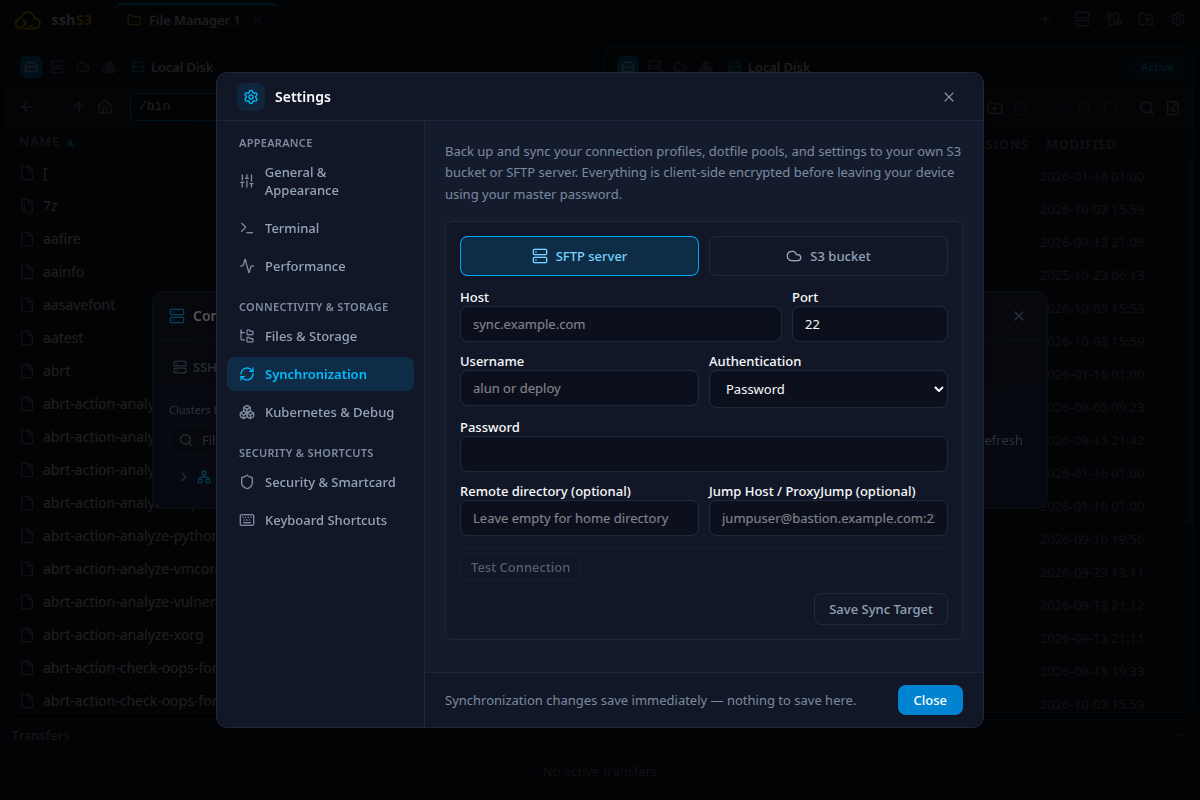
For operators working across multiple workstations, sshs3 provides end-to-end encrypted profile synchronization with zero proprietary cloud infrastructure. You own and control your storage backend:
- A private Amazon S3 bucket (or MinIO, Cloudflare R2, Ceph).
- A private remote SFTP server.
Zero-Knowledge Cryptographic Model
| Property | Implementation | Security Guarantee |
|---|---|---|
| Payload Encryption | AES-256-GCM (authTagLength: 16) | Full confidentiality and cryptographic tamper detection. |
| Key Derivation | scrypt (N=32768, r=8, p=1) | Highly resistant to offline GPU brute-force attacks. |
| Two-Tier Password | Optional separate passwords | Topology (hostnames/folders) vs Credentials (passwords/keys). |
| Smartcard Unlock | PIV / PKCS#11 deterministic signing | Choose the library under Smartcard / Hardware token and click Link smartcard; later use Unlock with Smartcard with only your PIN (RSA/Ed25519). |
| Deletions | Cryptographic tombstones | Prevents purged profiles from resurrecting after multi-device sync. |
Smartcard key derivation needs RSA or Ed25519. These algorithms sign deterministically, so the card produces the same wrapping key on every unlock. ECDSA cards (common on PIV/CAC) sign with a random nonce and cannot derive a static key; unlock with the master password once and use the card for session unlocking instead.
Saved Kubernetes / OpenShift clusters sync too (name, server, project and TLS option, under the topology password). Tokens and the local kubeconfig are never synced, so a cluster restored on another device shows as not signed in until you sign in there.
What Stays Strictly Local (Never Synced): Machine-specific fields stay local and are ignored if received from another device: a profile's private key path, PKCS#11 library path, agent path and agent identity files, plus the settings X server path, X server arguments and the global smartcard library path. A smartcard PIN is never stored or synced.
After a wrong master password the keys are not kept in memory; unlock again with the right password before pushing.
How Profiles Are Merged on a Pull
When the same profile exists on both devices, the version that was changed later replaces the other one as a whole:
| What | Behaviour on a pull |
|---|---|
| A setting you cleared on another device (folder, jump host, dotfile pool) | Cleared here too, because the newer profile wins. |
| Machine-specific fields (key path, PKCS#11 library, agent) | Kept from this device, see What Stays Strictly Local above. |
| Saved passwords and keys | Taken from the synced profile when the credentials are part of the pull; otherwise the ones on this device are kept. |
| When you last opened a profile | The later of the two times is kept, so the recent connections on this device are not lost. |
| Your local folders | A pull never removes them. |
If you use different versions of sshs3 on different devices, a profile edited on the older version can clear a setting that only the newer one knows about. Keep all devices on the same version.
Changing the Sync Target
Saving a different target (another host, port, user, endpoint, region, bucket or base path) starts over on this device: sync is locked, the stored salts and the last-sync time are dropped, and automatic synchronization is switched off. The key and salts belong to the data on the old target, so they are never reused to write to the new one. Unlock again with your master passwords: a target that already holds data is pulled first (as on a new machine), an empty one starts a new set. Turn automatic synchronization back on afterwards. Saving the same location again, for example with a rotated password or key, changes nothing.
Deleting Your Sync Data
In the Synchronization panel, the Danger zone has a Delete sync data... button. After an itemized confirmation it:
- permanently deletes the encrypted sync files (topology, credentials, dotfile pools, settings, saved directory-sync and Kubernetes profiles, SSH config/known_hosts data) from the remote target;
- removes the sync target, the master-password salts and any linked smartcard from this device, and locks sync here.
It never touches your local SSH/S3 profiles, dotfile pools or settings, and other machines that are already synced are unaffected until they next push or pull.
3. Managed Block in ~/.ssh/config
sshs3 ensures all saved SSH profiles are immediately accessible when running standard ssh <host> commands in external terminal emulators, VS Code, or automation scripts.
Under Settings → Terminal, ensure Keep ~/.ssh/config in sync with saved SSH profiles is checked. Whenever a profile is created or updated, sshs3 updates a marked block in ~/.ssh/config:
# BEGIN sshs3-managed (do not edit by hand -- managed by sshs3 Remote Profile Sync)
Host prod-db
  HostName 10.0.4.12
  User dbadmin
  Port 22
  IdentityFile ~/.ssh/id_ed25519
  ProxyJump bastion.example.com
# END sshs3-managed
Security Architecture: Strict Directive Filtering & Race-Free Serialization
- Allowlist Filtering: To prevent malicious configuration injection from shared profiles, only safe directives are written:
Host,HostName,Port,User,IdentityFile,PKCS11Provider,ProxyJump,ForwardAgent, and safe network options (ServerAliveInterval,Compression,Ciphers). Executable options (ProxyCommand,LocalCommand,Match,Include) are strictly filtered out. - Received blocks are filtered too: a managed block arriving from another machine passes the same allowlist before it is written, and configuration outside the managed block is never touched.
- Free-form extra options: a profile's extra SSH options follow the same allowlist, both in this block and on the
sshcommand line sshs3 starts; other options are ignored (SendEnvis not accepted, so a synced or imported profile cannot send your environment variables to a server). Use the profile's own fields for identity files, jump hosts, agent forwarding and X11. - Queue-Safe Writes:
SshNativeFileMergerserializes all file mutations throughqueueMutation, ensuring concurrent saves and background syncs never corrupt~/.ssh/config.
4. Troubleshooting & Diagnostics
| Symptom / Error | Probable Root Cause | Corrective Action |
|---|---|---|
Wrong master password / MAC mismatch | Incorrect master password entered during unlock | Re-enter password. If using two-tier mode, check topology vs credential password. |
ECDSA key not supported for derivation | Linked smartcard uses non-deterministic ECDSA | Unlock with master password and use card for session caching instead. |
| Sync is locked and automatic synchronization is off after saving the target | A different target was saved, so the key and salts of the old one were dropped | Unlock with your master passwords (pull first if the target already has data), then re-enable automatic synchronization. |
Sync conflict detected | Same profile modified concurrently on two workstations | Review the conflict resolution dialog to select which version should take precedence. |
| Remote sync data corrupted | Incomplete write or network failure during upload | Re-authenticate target and click Push to overwrite remote files with valid local state. |
The OS keyring is unavailable, so the master passwords cannot be stored securely | Linking a smartcard stores the master passwords encrypted by the OS keyring, and none is available or unlocked | Unlock the keyring or install a Secret Service (libsecret, KWallet) and link the card again. sshs3 will not keep the passwords unencrypted. |