Git Integration & Developer Tooling
For DevOps engineers and developers, sshs3 integrates cryptographic Git commit signing, developer SSH key management, and remote key discovery directly within the workspace under Settings → Git & GitHub.
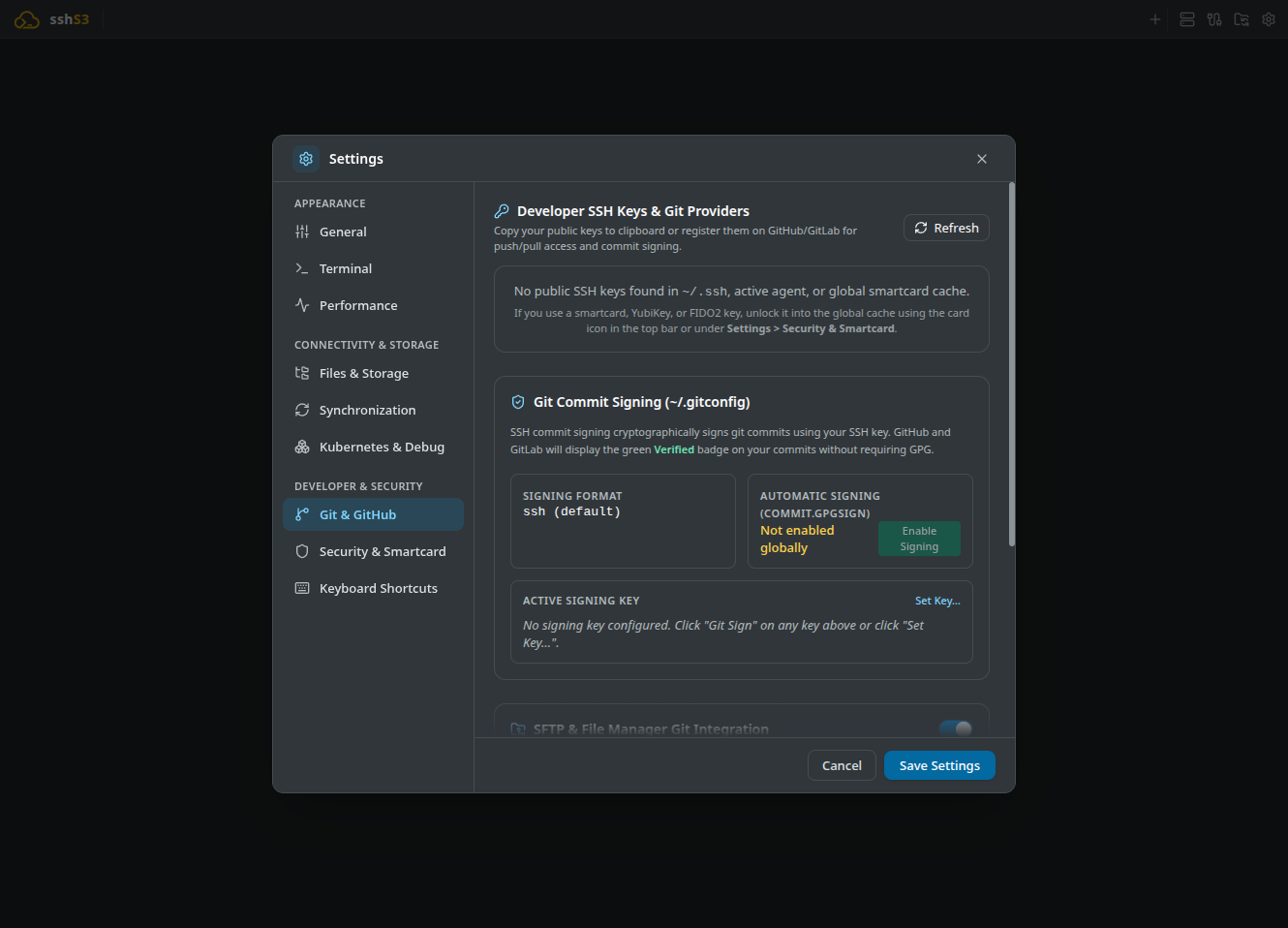
1. Cryptographic SSH Git Commit Signing (Without GPG)
Traditionally, cryptographically signing Git commits required configuring GnuPG (GPG), which is notoriously brittle and complex to manage. Git 2.34+ introduced native support for signing commits using standard SSH keys.
git config --global gpg.format ssh
git config --global user.signingkey ~/.ssh/id_ed25519.pub
git config --global commit.gpgsign true
git config --global gpg.ssh.allowedSignersFile ~/.ssh/allowed_signers
Once configured, verify signed commits locally with git log --show-signature -1:
commit 440f7768a12bc9e2 (HEAD -> main)
Good "git" signature for ops@example.com with ED25519 key SHA256:d8b2...
One-Click Git Signing Configuration
- Open Settings → Git & GitHub.
- Select your preferred SSH key (e.g. your local Ed25519 key or hardware YubiKey).
- Click Git Sign next to the key (or Sign Active for the active key), and enable Automatic Signing (commit.gpgsign).
- sshs3 automatically updates your global
~/.gitconfigand maintains~/.ssh/allowed_signersfor offline local signature verification.
Technical Architecture: Git Config & Allowed Signers File
sshs3 configures your global Git settings:
[user]
  signingkey = ~/.ssh/id_ed25519.pub
[gpg]
  format = ssh
[commit]
  gpgsign = true
It populates ~/.ssh/allowed_signers with your identity and public key and sets gpg.ssh.allowedSignersFile, enabling git log --show-signature to verify commits offline without network lookups.
2. Key Discovery & One-Click Provider Registration
Eliminate manual key hunting, copy-pasting, and navigation through provider account settings to authorize SSH keys on GitHub and GitLab:
- Open Settings → Git & GitHub.
- sshs3 automatically scans and discovers:
- Local key pairs in ~/.ssh/ (id_ed25519.pub, id_rsa.pub, etc.). - Active keys loaded in your running ssh-agent. - Unlocked FIDO2 tokens and smartcard authentication certificates.
- Click GitHub or GitLab next to any detected key.
- sshs3 copies the public key string to your system clipboard and opens the provider's key creation page in your default browser (on GitHub the key title is pre-filled). The providers do not accept the key itself through a web link, so paste it with Ctrl+V into the Key field. You must already be signed in to the provider in that browser.
3. Remote Public Key Lookup (username.keys)
Inspect and verify public keys belonging to colleagues or open-source maintainers directly from GitHub or GitLab without exchanging keys over unencrypted chat channels:
- In the Lookup Public Keys bar, type a username (e.g.
torvalds) and select a provider (GitHub, GitLab, or a custom self-hosted instance). - sshs3 fetches the public
<username>.keysendpoint and displays each key alongside its SHA256 fingerprint. - Click Fetch keys to look the user up, then Copy to copy a key string or Git Sign to use it for commit signing. To add a fetched key to a server's
~/.ssh/authorized_keys, use Fetch from Git Provider (username.keys) in the Install public key dialog. - Only public profiles are queried; a self-hosted GitLab instance must be reachable from your workstation.
4. Troubleshooting & Diagnostics
| Symptom / Error | Probable Root Cause | Corrective Action |
|---|---|---|
error: unsupported gpg.format 'ssh' | Workstation Git binary is older than 2.34 | Upgrade Git to 2.34+ (sudo apt install git or brew upgrade git). |
GitHub displays Unverified on commit | Key is not registered as a Signing Key | In GitHub SSH Settings, ensure key is added as a Signing Key (not only Auth). |
Signing failed: agent refused operation | Hardware YubiKey requires user touch | Tap your physical YubiKey when it flashes to complete the signature. |
| Remote key lookup returns 404 | Username does not exist or has no public keys | Check profile URL in browser: https://github.com/<username>.keys. |