Connection Profiles & Key Deployment
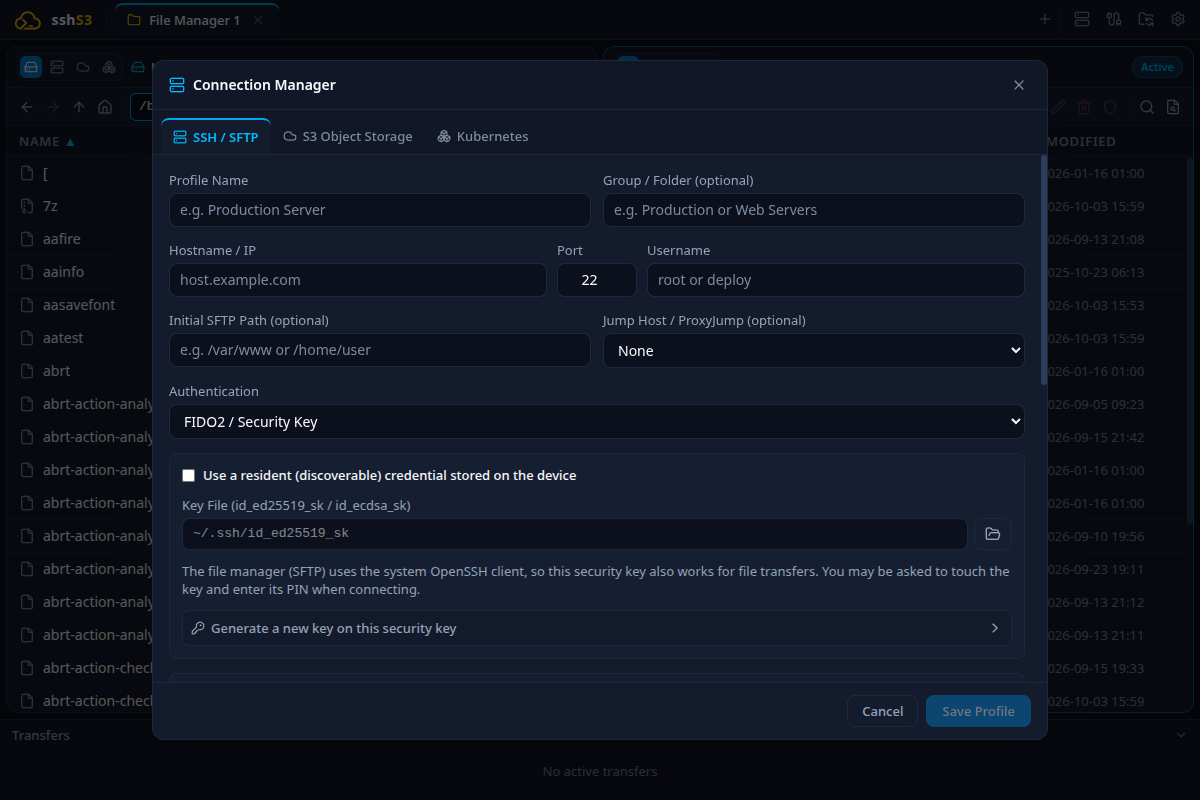
The Connection Manager in sshs3 (accessible via Ctrl+Shift+O or the primary sidebar) centralizes configuration, credentials, and topology management for SSH servers, Kubernetes clusters, and Amazon S3 object storage in a unified, searchable workspace. The SSH / SFTP, S3 Object Storage and Kubernetes tabs at the top are a tab strip: Left and Right (and Home/End) move between them, and Enter or Space opens the one in focus. Opening another tab discards a profile form you have not saved.
Team Collaboration: To share connection profiles and folders securely across your team using hardware YubiKeys, see Team Vault: Shared Connection Profiles. Shared teams appear as dedicated tabs alongside Personal profiles.
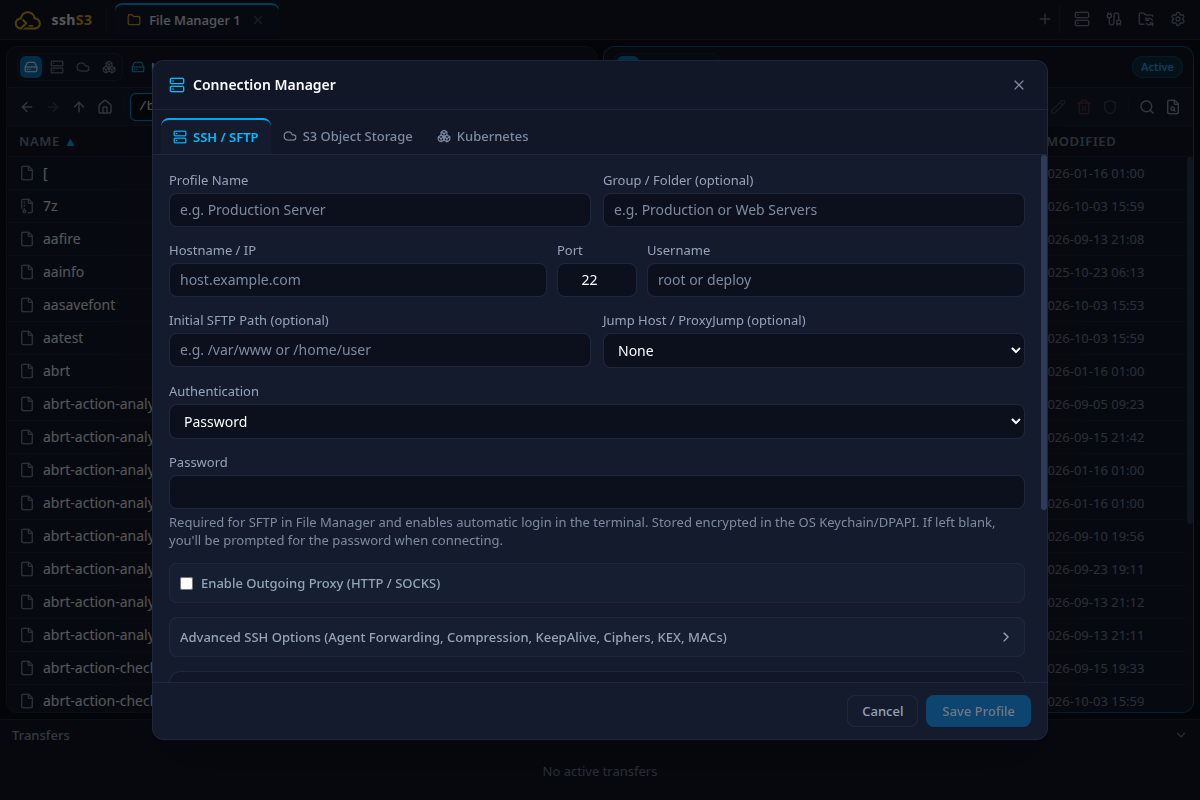
1. SSH Profiles & Hierarchical Folders
Organize fleets of hundreds or thousands of servers into logical folder trees (e.g. Prod/Database/Stockholm, Staging/Web) and filter targets instantly in real time.
Cross-Source Search & Origin Badges
Typing in the search bar finds matching profiles across all profile backends simultaneously:
- Local personal connections
- Remote Profile Sync connections
- All joined Team Vaults
Matches outside the current view display an origin badge (e.g. Team: Infra or Sync), making it effortless to jump to any server across all your teams without switching tabs.
Working with Several Profiles
Every profile row has a checkbox at its start. It appears when you point at or tab to the row, and on all rows as soon as one is selected. Select a few and an action bar appears above the list.
| Action | What it does |
|---|---|
| Move to folder… | Moves all selected profiles to the folder you type: an existing one (suggested while you type) or a new one. A path such as Prod/Web makes nested folders. Take out of folder removes them from their folder instead. |
| Add tags… | Adds the tags you enter to every selected profile, next to the tags they already have. |
| Clear | Deselects everything. |
The selection belongs to the list you are looking at: it is forgotten when you switch between SSH / SFTP and S3 Object Storage, choose another team, or close the dialog. While you search, only the profiles that are still visible count. The bar says how many profiles were changed, and profiles that are already in the folder or already have the tags are left alone.
In a Team Vault each profile is saved to the vault one at a time, exactly like dragging it to a folder, so moving many profiles makes many small changes that sync to the other members. If a save is refused (for example because the vault is read-only for you) the rest are not attempted, the profiles saved so far stay moved, and the selection is kept so you can try again.
Systems
A system groups the servers that belong together, for example the web, database and cache servers of one application, so that you can connect to all of them with one click. A system is made by giving several SSH profiles the same System name in the profile form; it has no settings of its own.
| In the profile form | What it does |
|---|---|
| System | The name of the system. Profiles with the same name (ignoring case) form it. Existing systems are suggested while you type. Clear the field to take the server out of the system. |
| Open a terminal to this server | On by default. Switch it off for a server that should only contribute tunnels. |
| Start directory | The directory the terminal starts in. ~ and ~/path mean the home directory on the server. |
| Tunnels to start | Which of the profile's own tunnels are started with the system. Shown when the profile has tunnels. |
The system is drawn as one row with the number of servers and a Connect all button, and its servers indented below it. Click the chevron to collapse it. Connect all opens one terminal tab per server (the first one is selected), starts the chosen tunnels, and reports tunnels that could not start in a message at the bottom of the window. Searching for the system's name shows all its servers.
Making and managing systems
Select profiles with their checkboxes and choose Group as system… in the bar that appears. Type a system name (existing ones are suggested) and a folder; the selected servers join the system and move to that folder, together with any servers that are already in it. It is offered for SSH profiles only.
| To | Do this |
|---|---|
| Move a system | Drag any one of its servers to another folder, or select one and use Move to folder…. The whole system moves. |
| Rename it | Click the pencil on the system row, type the new name and press Enter or click away (Esc cancels). A name another system already has is refused, so two systems are never merged by accident. |
| Ungroup it | Click the unlink button on the system row and confirm. The profiles stay, they are just no longer a system. |
| Take one server out | Clear System in that server's profile form. |
A server in a system shows its folder as Follows the system in the profile form, so it is changed by moving the system. Clear System to free the folder again.
A system lives in one folder: the one most of its servers are in. Its servers are drawn there even if their own Group / Folder differs. Each server still asks for its own password or PIN, since they are different hosts.
In a Team Vault a system can only contain that team's own profiles, and every member sees it. Members may change which system a server belongs to, like its folder. Older versions of sshs3 show the servers as ordinary profiles and keep the system when they save other changes.
Global Search
Press Ctrl+Shift+G or click the magnifier at the start of the quick links in the top bar to find a saved profile, an open tab or a host from anywhere, without opening Connection Manager. The shortcut can be changed in Settings > Shortcuts and the whole feature switched off with Enable global search in Settings > General.
| Input | Result |
|---|---|
Plain words (web prod) | Profiles and tabs where every word matches, fuzzy: the letters only have to appear in order, so w01 finds web-01. Names rank above hosts and folders. |
#prod | Only profiles with a tag containing prod. Combine with words (#prod db). |
alice@host or alice@host:2222 | A Connect to row for a one-off connection that is not saved. |
> then words (>new term) | Actions instead of profiles: New Terminal, New File Manager, New Remote File Manager, New Window, Connection Manager, Settings and Keyboard Shortcuts, each with its current key combination. A lone > lists them all. |
A system's name (shop) | The system as one row (System · 3 servers) and its servers. Enter on the system row does Connect all. |
| Nothing | Your most recently used profiles and the open tabs. |
| Key | Action |
|---|---|
| Up / Down | Move through the results. |
| Enter | Connect (SSH or S3), switch to an open tab, start the one-off connection, or run the chosen action. |
| Shift+Enter | Open SFTP for an SSH profile (not offered for a system). |
| Tab | Cycle the filter: All, Profiles, Open tabs. |
| Esc | Close and return to where you were. |
Profiles from every unlocked Team Vault are included, with the team name as a badge. A locked vault is listed at the bottom so it is not silently missing; choosing it opens Connection Manager, where you unlock it. Vaults you have hidden in Connection Manager are left out.
Connecting from the search follows the same rules as the Connect button: an empty terminal tab is reused, otherwise a new tab opens, and the last-used time of a personal profile is updated. Team Vault profiles never get a last-used time written back, so the search cannot list them under "recent".
"Unlock All" for Locked Hardware Teams
When one or more Team Vaults are currently locked, an Unlock all action button is displayed. Clicking it sequentially prompts your hardware security key or smartcard PIN to unlock all your team vaults in one flow.
Tags
A profile lives in one folder but can carry several tags, so the same server can be both under Production/Web and found as #web or #prod. SSH and S3 profiles, personal and Team Vault, support tags.
| Action | How |
|---|---|
| Add a tag | Type it in Tags in the profile form and press Enter or ,. A leading # is ignored. Text left in the field is added when you leave it. |
| Remove a tag | Press Backspace in the empty field to remove the last one, or use the x on a chip. |
| Search by tag | Type the tag in the search bar, with or without # (prod or #prod). Tags match as part of a word, like the other fields. |
Tags start with a letter or digit and may contain letters, digits and . _ : / - (no spaces). Duplicates are merged ignoring case, and tags are kept sorted, so the same profile looks identical on every device.
In a Team Vault, tags are part of the shared profile: every member sees them, and members may edit them even though they cannot change a stored password or the host.
SSH Profile Field Reference
| Field Name | Default | Purpose & Description | Constraints |
|---|---|---|---|
| Profile Name | Required | Display label used in tab headers and connection lists. | Cannot be empty. |
| Group / Folder | Empty | Organizes profiles into folder trees (e.g. Production/Web). | Subfolders supported with /. |
| Tags | Empty | Labels that cut across folders (e.g. prod, db). Shown as chips on the profile and searchable. | Up to 10 per profile, 32 characters each. See Tags. |
| Hostname / IP | Required | Target FQDN (e.g. server.internal) or IPv4/IPv6 address. | Resolvable via DNS or reachable via ProxyJump. |
| Port | 22 | Target SSH daemon listening port. | Integer between 1 and 65535. |
| Username | Required | Remote user account (e.g. ubuntu, root, deploy). | POSIX username standards. |
| Initial SFTP Path | Empty | Default folder opened in the file manager upon connecting. | Defaults to remote home directory. |
| Jump Host / ProxyJump | None | Reach the server through another saved profile or manual bastion (user@bastion:22). | Target host must be accessible from jump host. |
| Outgoing Proxy | Off | Route connection through an HTTP, SOCKS4, or SOCKS5 proxy. | Credentials encrypted in OS keyring. A target host with spaces or control characters is refused, and so is a SOCKS5 host, user name or password longer than 255 bytes. |
| Dotfiles Pool & Sync | Not assigned | Assign a dotfiles pool to this profile and select sync behavior. | See Environment & Profile Sync. |
Technical Architecture: Storage & Secret Encryption
Profiles are serialized into profiles.json inside the user data directory (~/.config/sshs3/). Writes execute sequentially via queueMutation promises to prevent file corruption during concurrent operations. Secret fields (passwords, private key passphrases) are extracted and encrypted via Electron's safeStorage API using your native OS keyring (libsecret on Linux, DPAPI on Windows, Keychain on macOS).
Good to Know & Limitations: Profile Organization & Folders
- Folder Names: Group and folder names cannot contain reserved filesystem characters (
<,>,:,",|,?,*). Subfolders are created by separating segments with/(e.g.Databases/Postgres/Replica). - Pruning Empty Folders: Personal profile folders are virtual groupings; empty folders are cleaned up automatically when all member profiles are moved or deleted. (For persistent empty folders, use Team Vault).
2. Authentication Methods & Hardware Tokens
sshs3 supports five distinct authentication mechanisms:
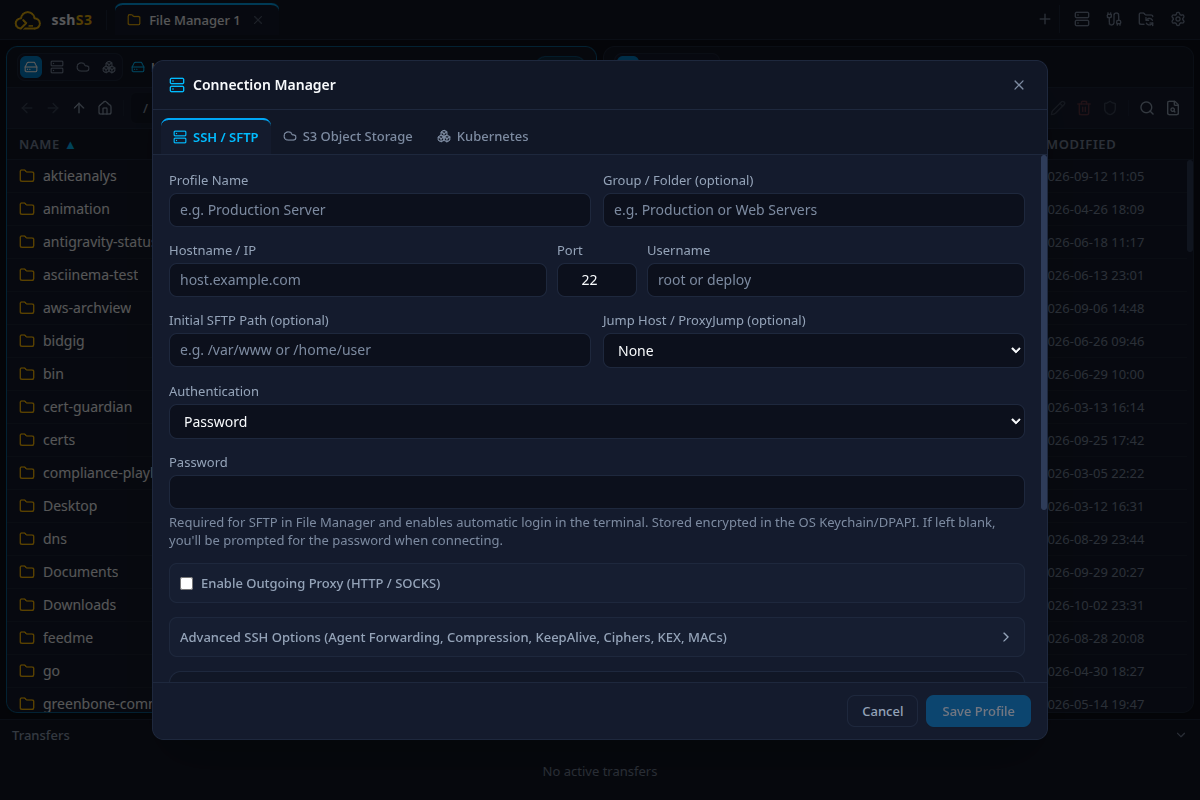
- Password: Traditional password authentication, encrypted at rest via the OS keyring.
- Private Key File: Local private key file (
id_ed25519,id_rsa) with optional passphrase. - SSH Agent: Delegates authentication to the running SSH agent (
$SSH_AUTH_SOCK). Profiles with Agent authentication can tick Use active SSH Certificate Authority session to use the short-lived user certificate you got from Step-CA or Vault / OpenBao; see SSH Certificate Authority (SSH CA). - FIDO2 / Hardware Security Key: Hardware WebAuthn/FIDO2 credentials via YubiKey (
ed25519-sk,ecdsa-sk). - Smartcard (PKCS#11): Smartcards (PIV, CAC, SITHS) via native PKCS#11 libraries (
p11-kit,opensc,libykcs11).
A saved password or passphrase is only used where it belongs. It answers ssh's own prompt for it. If a server asks something else, such as a verification code, you are asked instead. On a profile with a jump host, the saved password answers only a prompt addressed to that profile's own user@host; the jump host's password is not stored, so you are asked for it.
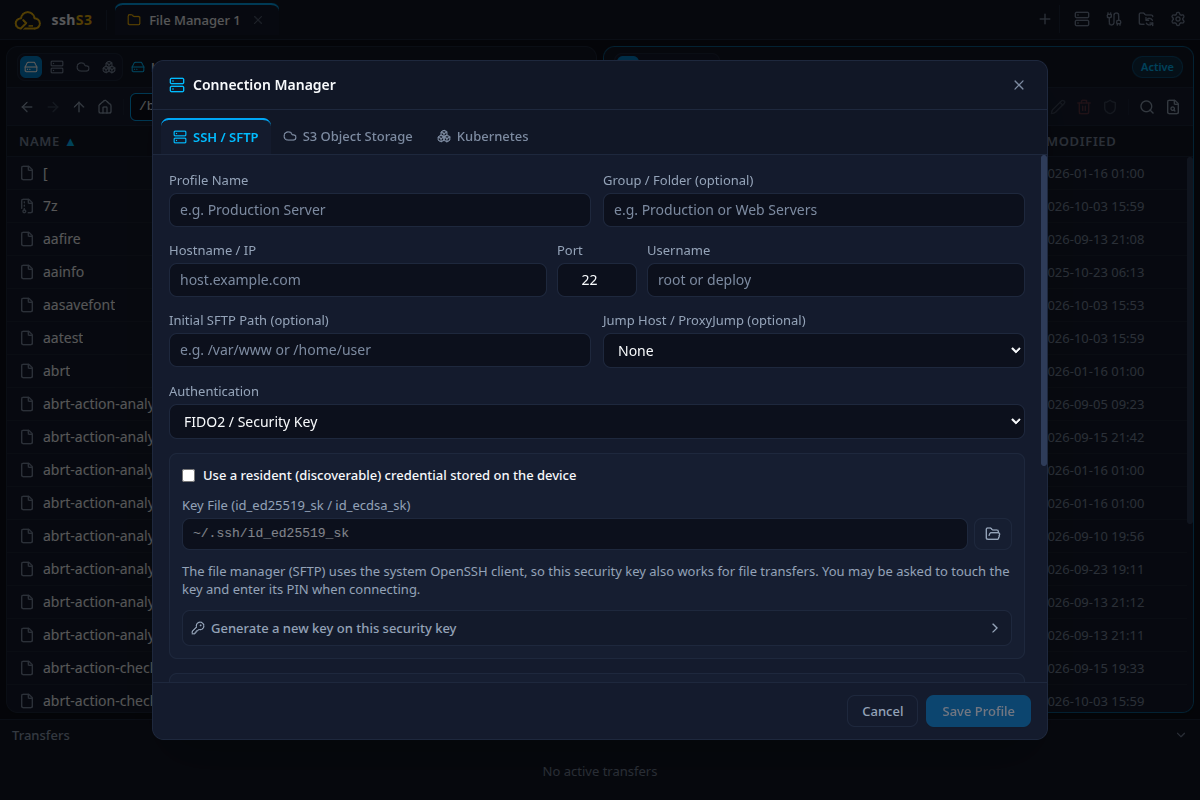
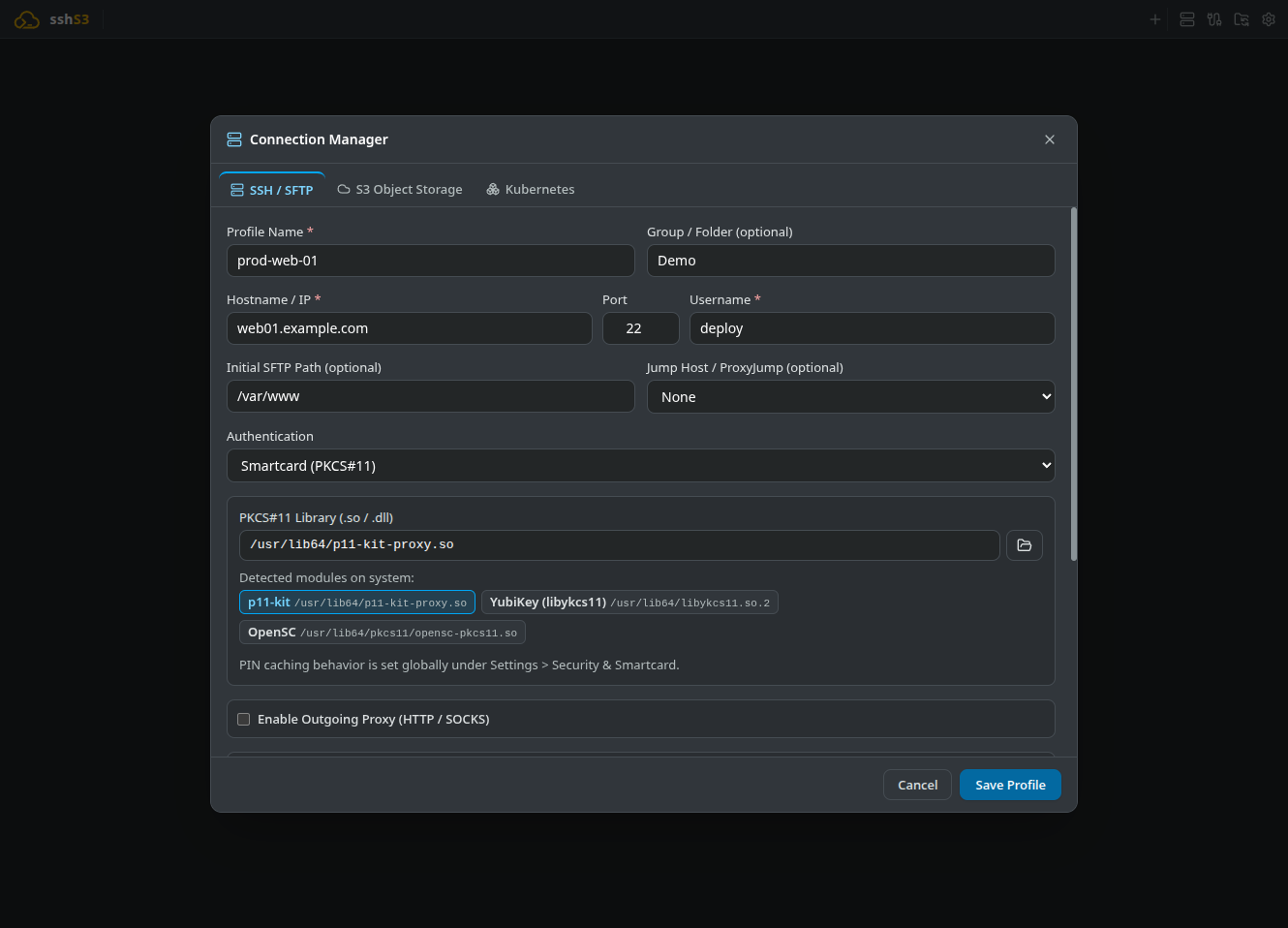
Hardware Key Guidelines
- FIDO2 Resident Credentials: Select FIDO2 and tick Use a resident (discoverable) credential stored on the device. No key file is needed: the app queries resident credentials stored inside the physical token upon connection.
- Reading the Key: Click Re-scan connected security key (it also runs when you open the profile, except on Windows), enter the key's PIN and touch it. The list shows only your SSH keys; other passkeys on the key, such as those for GitHub or Google, are not shown and cannot be deleted here. The trash icon (Delete this credential from the security key) asks Delete? first and needs YubiKey Manager (
ykman). If you dismiss the PIN dialog, nothing is sent to the key and PIN entry was cancelled is shown. - Generate New FIDO2 Key: Expand Generate a new key on this security key, choose
ED25519-SK(orECDSA-SKfor legacy firmware), tick Require PIN + touch on every use, and touch your key when prompted. - U2F-Only Keys: Older keys (YubiKey 4, NEO) lack FIDO2 support (
ykman inforeportsFIDO2 Not available). On these devices, generate anECDSA-SKkey without PIN and without resident storage, or use the token's PIV smartcard application instead. - Safe Password Fallback: When password authentication is chosen, sshs3 passes
-o PubkeyAuthentication=noso inserted hardware keys cannot trigger unexpected touch prompts.
Security Model: Zero Private Key Extraction
sshs3 enforces Zero Private Key Extraction. Private key bytes never traverse Node.js or Chromium heaps:
- FIDO2: Key files reference a key handle (
-i ~/.ssh/id_ed25519_sk). Resident keys load via OpenSSH's native agent integration (ssh-add -K). - Smartcards: Configured via
-o PKCS11Provider=<library-path>coupled with the app's internalAskpassServer, delivering user PINs over an isolated Unix domain socket.
Good to Know & Limitations: Hardware Keys & Protocol Compatibility
- OpenSSH Version Requirement: FIDO2 security keys require OpenSSH 8.2 or later on both your local workstation and the destination SSH server.
- U2F-Only Keys (YubiKey 4, NEO): Older hardware tokens support U2F but not the FIDO2 standard (
ykman infoshowsFIDO2 Not available). They cannot generateed25519-skkeys, resident discoverable credentials, or keys with PIN protection (verify-required), causing generation to fail withPIN incorrector Windows' "This security key can't be used". On these tokens, choose ECDSA-SK, untick Require PIN + touch and Resident, and specify a new output filename; the token will require physical touch only. Alternatively, utilize the card's PIV smartcard applet. - Dedicated Key Filenames: Assign distinct filenames to each key handle (e.g.
id_ed25519_sk_work,id_ed25519_sk_personal) so multiple tokens do not overwrite each other's credentials.
3. Public Key Deployment (ssh-copy-id GUI)
Replace error-prone manual ssh-copy-id commands with a graphical multi-key deployer that safely installs public keys without duplicating lines in ~/.ssh/authorized_keys:
- Right-click any SSH profile and select Install public key (or use Install key… in the Access section of the profile editor, next to Test connection).
- Select the public keys you want to authorize (e.g. workstation key, YubiKey FIDO2 key, or smartcard certificate).
- Select your login method under Log in with (Automatic (recommended), Password, This profile's key, or Already-unlocked keys (ssh-agent); a Smartcard (PKCS#11) choice appears when another smartcard is present) and click Install N key(s).
- Out-of-Band Copy: Click Copy command (Bash) or Copy PowerShell to generate a safe, idempotent one-liner ready to paste into web consoles or out-of-band management terminals (iLO, iDRAC):
mkdir -p -m 700 ~/.ssh && echo 'ssh-ed25519 AAAAC3NzaC1lZDI1NTE5AAAAIG...' >> ~/.ssh/authorized_keys && chmod 600 ~/.ssh/authorized_keys5-Stage Connection Health Timeline
The Access Check timeline automatically diagnoses remote connection health before or during key installation:
- Reach Host: Verifies raw TCP socket connectivity to target port.
- Host Key: Validates the server's public key fingerprint against
~/.ssh/known_hosts. - Login Methods: Probes the OpenSSH daemon for permitted authentication methods without requiring PIN entry.
- Key Installed: Scans
~/.ssh/authorized_keysto determine whether selected public keys are already present. - Login Works: Executes an end-to-end authentication test verifying session authorization.
Good to Know & Limitations: Public Key Deployment
- Initial Login Access: Automated installation requires an existing authentication path (password authentication or an already authorized SSH key). If password authentication is disabled on the server, use Copy command (Bash) and run it via an out-of-band console.
- Read-Only / SELinux Filesystems: Deployment fails if the remote filesystem is mounted read-only, if disk quota is exceeded, or if strict SELinux policies on the server reject writes to
~/.ssh/authorized_keys.
4. Trust On First Use (TOFU) & Host Verification
Connecting to an unknown host displays an interactive fingerprint dialog:
┌────────────────────────────────────────────────────────────────────────┐
│ ⚠️  The authenticity of host '10.0.4.12 (ED25519)' can't be established.│
│ Fingerprint: SHA256:d8b248a...                                         │
│ Are you sure you want to continue connecting?                          │
│ [ Trust Host ]                                           [ Cancel ]    │
└────────────────────────────────────────────────────────────────────────┘- Verify Fingerprint: Review the SHA256 host key fingerprint and click Trust Host to append the key to
~/.ssh/known_hosts. - Changed Host Key Guard: If a host key changes unexpectedly, OpenSSH rejects the connection to protect against Man-In-The-Middle (MITM) attacks. sshs3 displays a security warning and allows you to replace the stale key only after explicit confirmation.
- Fail-Closed Policy: Host key prompts captured by
AskpassServerabort automatically if not answered within 60 seconds.
Good to Know & Limitations: Host Key Replacement & TOFU
- Host Key Replacement: If a remote server is reinstalled and generates a new host key, OpenSSH halts with
HOST KEY VERIFICATION FAILEDand sshs3 presents a red security warning. Clicking Replace Key removes the outdated entry from~/.ssh/known_hosts(identical tossh-keygen -R <host>), allowing you to verify and trust the new key. Only execute key replacement when you know the remote server was reinstalled intentionally.
5. Advanced OpenSSH Protocol Options
In any SSH profile, expand Advanced SSH Options to fine-tune low-level OpenSSH flags:
| Parameter | Flag | Purpose | Recommended Use |
|---|---|---|---|
| Agent Forwarding | -A | Exposes your local SSH agent to the remote server for chaining outbound connections. | Only on trusted target servers. |
| X11 Forwarding | -Y | Forwards remote graphical Linux GUI applications to your local display. | On Windows, uses bundled VcXsrv. |
| Compression | -C | Enables Gzip compression across the SSH stream. | Recommended on slow/high-latency WAN links. |
| ServerAliveInterval | 0 | Sends periodic keep-alive null packets (in seconds). | Set to 30 or 60 to avoid firewall NAT timeouts. |
| X11 Display Location | 127.0.0.1:0.0 | Target X-server socket where forwarded X11 windows are drawn. | Leave default unless running a custom external display server. |
| Custom Algorithms | Defaults | Overrides ciphers, KEX algorithms, or MACs (comma-separated lists, e.g. chacha20-poly1305@openssh.com,aes128-gcm@openssh.com). | Connecting to legacy or hardened appliances; the remote server must support the chosen algorithms. |
6. Migration: Import & Export (~/.ssh/config & JSON)
- Import from OpenSSH: In the Connection Manager, click Import Hosts from ~/.ssh/config. Imports all
Hoststanzas, hostnames, ports, users,IdentityFile, andProxyJumpdirectives into organized folders. - JSON Backup: Click Export JSON Backup to save your folder structure and profiles to a clean JSON file. Saved passwords and secret keys are stripped for safety.
- Import JSON: Restore saved profiles on a new workstation via Import JSON Backup.
Good to Know & Limitations: Configuration Import Filtering
- Directive Allowlist: When importing from
~/.ssh/config, only safe connection parameters are imported (Host,HostName,User,Port,IdentityFile,ProxyJump,LocalForward,RemoteForward,DynamicForward). Wildcard patterns (*,?) and executable directives (ProxyCommand,LocalCommand) are strictly ignored to prevent configuration injection.
7. Troubleshooting & Diagnostics
| Symptom / Error | Probable Root Cause | Corrective Action |
|---|---|---|
Host key verification failed | Server host key mismatch in ~/.ssh/known_hosts | If server was reinstalled, purge stale entry: ssh-keygen -R <hostname>. |
Permission denied (publickey) | Server rejects offered credentials | Verify key assignment. Use Install public key to deploy your public key. |
Connection timed out | Firewall blocking port 22 or incorrect IP | Verify connectivity via ping or nc -zv <host> 22. Verify if a ProxyJump bastion is needed. |
FIDO2 device not found | Token unplugged or OS lacks FIDO2 support | Reconnect key. Run ssh-keygen -K in terminal to verify device detection. |