Configuration, Settings & Shortcuts
Configuration, Settings & Keyboard Shortcuts
This chapter provides a complete reference across all configuration panels in sshs3, details the 2D Spatial Keyboard Navigation system, and includes an autogenerated reference table of all keyboard shortcuts extracted directly from the application source code.
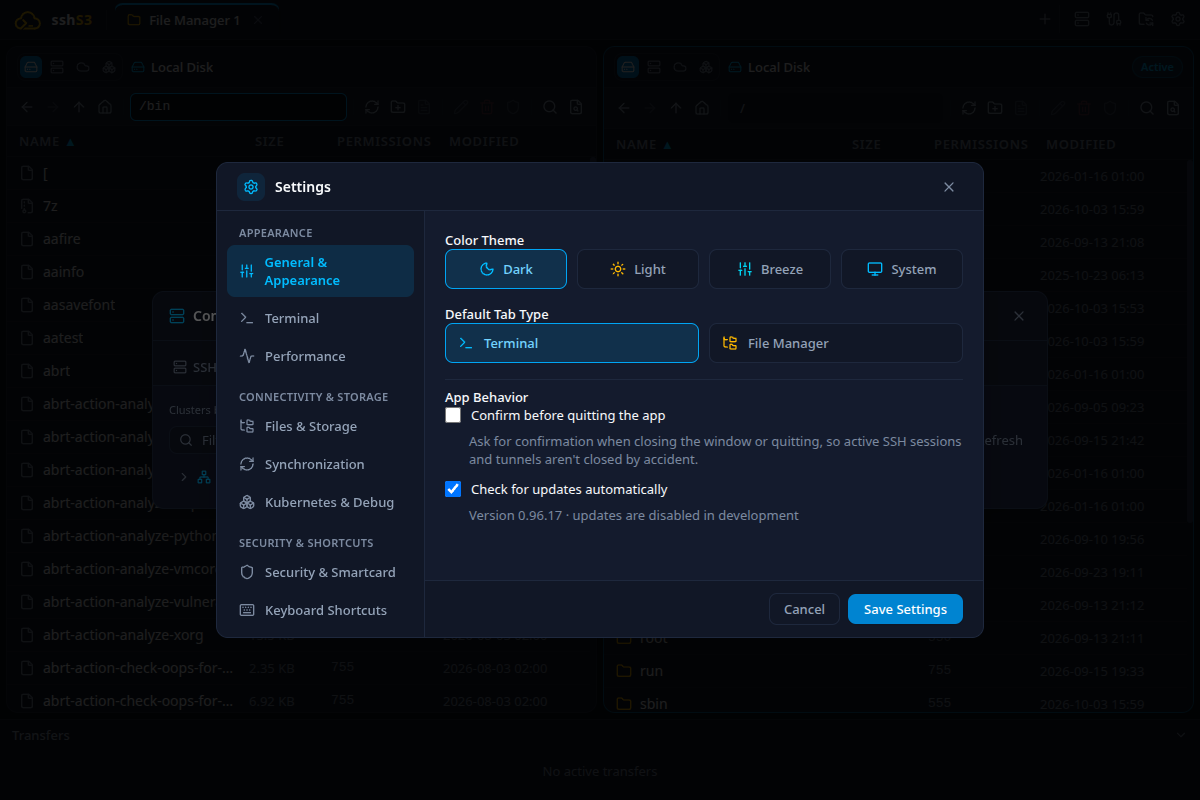
1. Global Settings Panels (Ctrl+,)
Access the preferences dialog via the gear icon in the top toolbar or via the keyboard shortcut Ctrl+,.
1.1 General & Appearance
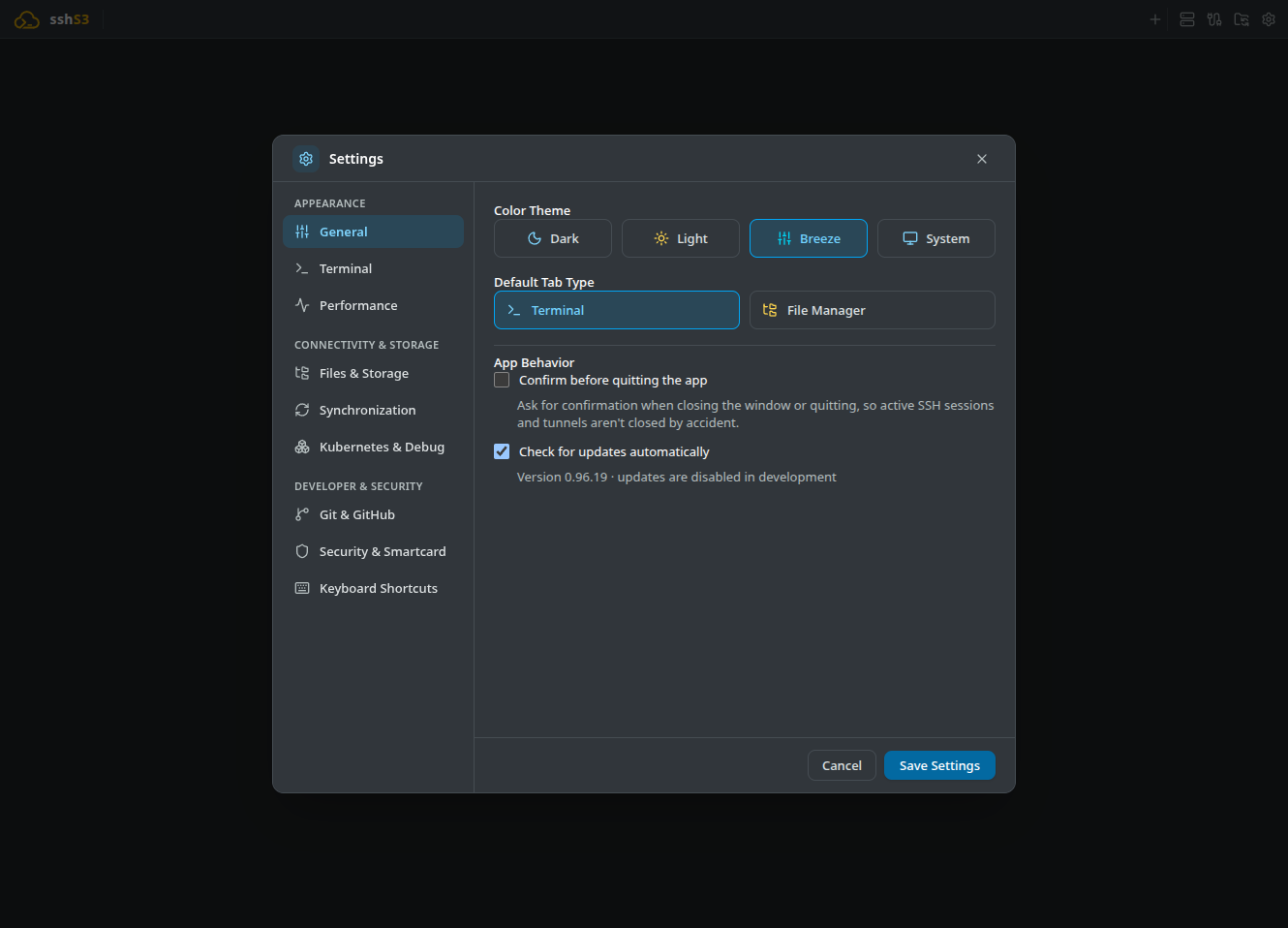
- Color Theme: Dark (slate dark), Light (clean gray), Breeze (KDE-inspired theme with cyan accents), or System (tracks OS dark/light mode).
- Default Tab Type: Whether a new tab is a Terminal or a File Manager.
- Confirm before quitting the app: Warns if active terminal sessions or background file transfers are in progress when closing the window.
- Check for updates automatically: Checks GitHub Releases in the background every 6 hours; Check now, Download and Restart and install are explicit actions. Locked off when
SSHS3_DISABLE_UPDATES=1is set.
1.2 Terminal
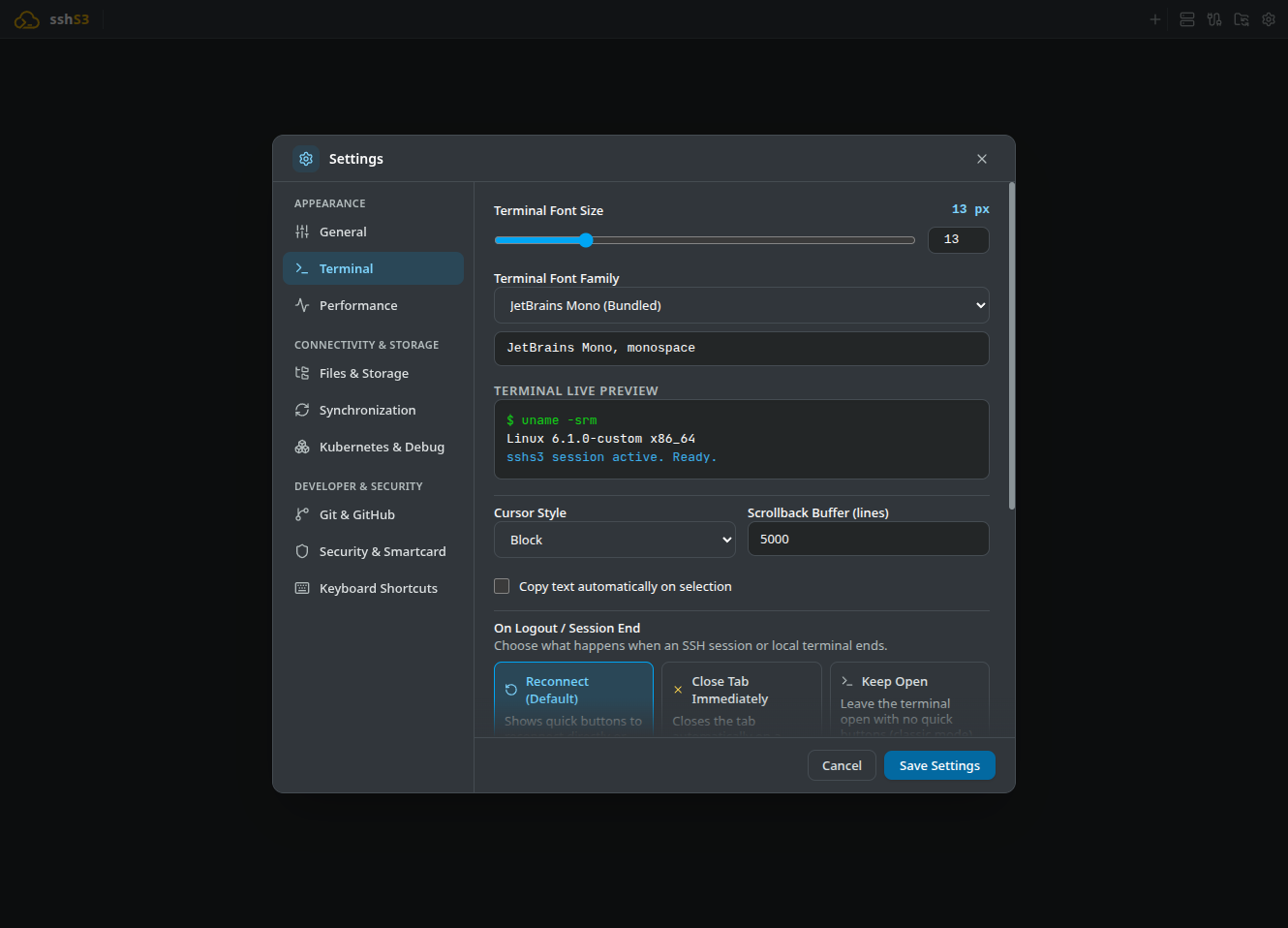
- Terminal Font Size and Terminal Font Family, with a Terminal Live Preview.
- Cursor Style: Block, Underline, or Vertical Bar.
- Scrollback Buffer (lines): Retained lines per terminal session (default 5,000).
- Copy text automatically on selection: Adds highlighted text to the encrypted clipboard history. Clipboard history scope is Global (shared by all hosts and terminals) or Per host (follows the connection); Empty clipboard history on exit clears it when the app quits.
- On Logout / Session End: Reconnect (Default) (quick buttons to reconnect or close), Close Tab Immediately (on a clean logout), or Keep Open.
- Local Terminal SSH Agent: How
$SSH_AUTH_SOCKis set in local shell tabs: Auto (the active smartcard agent, else the system/login-shell agent, else an sshs3-managed one), System Only (inherit the system or login-shellSSH_AUTH_SOCK), or Disabled (do not set it). - Keep
~/.ssh/configin sync with saved SSH profiles (on by default): Maintains a marked block in your local~/.ssh/configat startup and whenever an SSH profile is saved, deleted, or imported, sosshworks in any external terminal. Only the sshs3 block is touched. Writes are serialized and values are stripped of line breaks so a profile field cannot inject extra directives.
1.3 Performance
- Show performance bar above terminals turns the real-time telemetry bar on or off. Choose the layout (Compact Text, Bars, Sparklines), the sampling interval (2s, 5s, 10s, 30s) and which metrics to show.
1.4 Files & Storage
- Show hidden files and dotfiles (.git, .env, etc.).
- Default Conflict Resolution for File Transfers: What happens on filename collisions: Ask (default), Overwrite, Skip or Rename.
- Confirm before deleting files and folders and Verify file integrity and size after transfer (both on by default).
- Share folders between SSH/SFTP and S3 in Connection Manager.
- Enable dotfiles pool sync (off by default) and Manage Dotfile Pools.
Up to 3 transfers run in parallel; this is fixed, not a setting.
1.5 Security & Smartcard
- PIN caching: Always Prompt (Default), Once Per Terminal Connection, or Global (App Lifetime). Under Global, all unlocked keys reside in a single app-wide
ssh-agent(AppAgent), and the top bar card icon features an interactive Lock All Now / Unlock Now toggle. Unlock smartcard at app startup (Global only) asks for the PIN as soon as the app opens. - Detected PKCS#11 Hardware Token Libraries: the libraries found on the machine, with Rescan.
1.6 Kubernetes & Debug
- Red Hat OpenShift support toggle, default diagnostic container presets for
kubectl debug(Netshoot, RHEL Support Tools, BusyBox, Curl, Ubuntu).
2. 2D Spatial Keyboard Navigation & Mouse-Free Ergonomics
The application is engineered to be fully operable without a mouse:
Feature: Mouse-Free Spatial Focus Navigation & Universal Controls
🎯 Purpose
Deliver maximum keyboard efficiency by allowing operators to navigate across split terminal panes, tab docks, and modals in two dimensions without touching the mouse.
🛠️ How to Use
- Spatial Navigation (Ctrl+Shift+Arrow Keys):
- Shift focus in the direction of the pressed arrow across split panes, tabs, dual file manager panes, menus, and dialogs. - Pressing Ctrl+Shift+Up from the top-most pane moves focus directly into the Tab Bar (where Left/Right switches active tabs, and Down or Enter returns focus back inside the active tab). - In dialogs and modals: Ctrl+Shift+Arrow Keys moves focus between fields, dropdowns, and action buttons even when the cursor is typing inside a text input field!
- Action Activation (Enter):
- Activates whatever element is currently focused: opens folders, launches connections, toggles checkboxes, and triggers focused action buttons.
- Dismiss & Return (Escape):
- Closes open menus, popups, and modal dialogs, cleanly restoring keyboard focus back to the exact element or terminal pane you came from.
⚠️ Limitations & Caveats
- If desktop window managers (e.g. GNOME or Windows) bind these key combinations globally, shortcuts can be rebound in Settings → Keyboard Shortcuts.
⚙️ Technical Internals & Architecture
spatialNavigation.ts reads the bounding boxes (getBoundingClientRect) of the candidate panes or focusable elements and, for the pressed arrow, scores each candidate in that direction by its gap along the axis plus a weighted offset across it (candidates that do not overlap the current element are penalized); the lowest score wins. When a modal closes, focus returns to the element that opened it if nothing else has taken focus.
3. Keyboard Shortcuts Reference Table
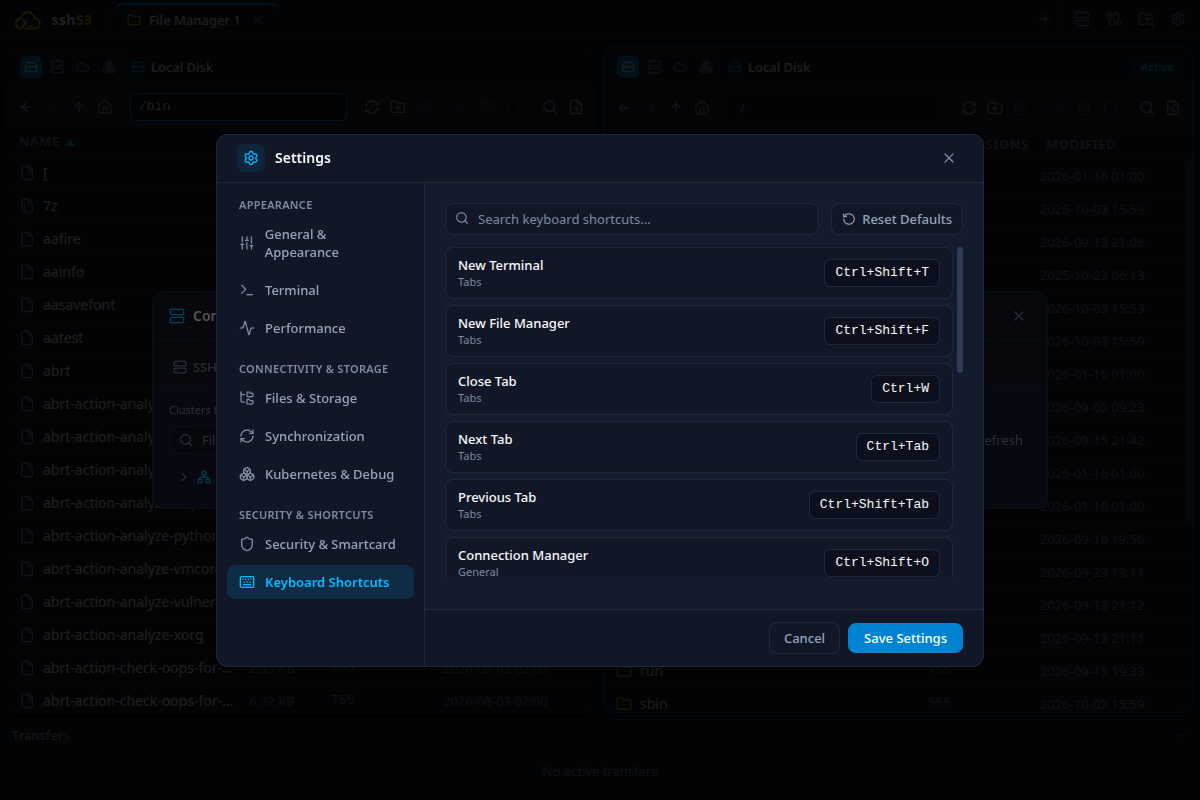
The table below is autogenerated directly from the application source code (src/shared/types/settings.ts) during every documentation build to guarantee 100% accuracy with runtime keybindings.
| Action / Command | Default Shortcut | Category | Internal Action ID |
|---|---|---|---|
New Terminal | Ctrl+Shift+T | Tabs | newTerminal |
New File Manager | Ctrl+Shift+F | Tabs | newFileManager |
Close Tab | Ctrl+W | Tabs | closeTab |
Next Tab | Ctrl+Tab | Tabs | nextTab |
Previous Tab | Ctrl+Shift+Tab | Tabs | prevTab |
Connection Manager | Ctrl+Shift+O | General | openProfiles |
Settings | Ctrl+, | General | openSettings |
Navigate Left (Split / Panel) | Ctrl+Shift+Left | General | navigateLeft |
Navigate Right (Split / Panel) | Ctrl+Shift+Right | General | navigateRight |
Navigate Up (Split / To Tabs) | Ctrl+Shift+Up | General | navigateUp |
Navigate Down (Split / Into Tab) | Ctrl+Shift+Down | General | navigateDown |
Split Terminal Vertically | Ctrl+Shift+D | Terminal | splitVertical |
Split Terminal Horizontally | Ctrl+Shift+E | Terminal | splitHorizontal |
Next Split Pane | Ctrl+Shift+N | Terminal | nextPane |
Previous Split Pane | Ctrl+Shift+P | Terminal | prevPane |
Increase Font Size | Ctrl++ | Terminal | increaseFontSize |
Decrease Font Size | Ctrl+- | Terminal | decreaseFontSize |
Reset Font Size | Ctrl+0 | Terminal | resetFontSize |
Clipboard History | Ctrl+Shift+R | Terminal | clipboardHistory |
Search in Terminal | Ctrl+Shift+S | Terminal | terminalSearch |
Copy Last Command Output | Ctrl+Shift+G | Terminal | copyLastOutput |
Snippets | Ctrl+Shift+L | Terminal | snippets |
Search in Files | Ctrl+Shift+K | General | searchInFiles |
4. Troubleshooting & Diagnostics Runbook
| Symptom / Error Message | Probable Root Cause | Corrective Action |
|---|---|---|
| Settings do not persist after restart | File permissions locked on settings.json | Check permissions on ~/.config/sshs3/settings.json. |
| Shortcut conflicts with desktop environment | Global OS hotkey intercepts keydown event | Open Settings → Shortcuts, click the conflicting action, and record a custom key combination. |
| Terminal text appears distorted | Selected font is proportional rather than monospaced | Select a fixed-width monospaced font (e.g. JetBrains Mono, Fira Code, Consolas). |