Terminal, Split Panes & Ergonomics
Terminal & Workspace Ergonomics
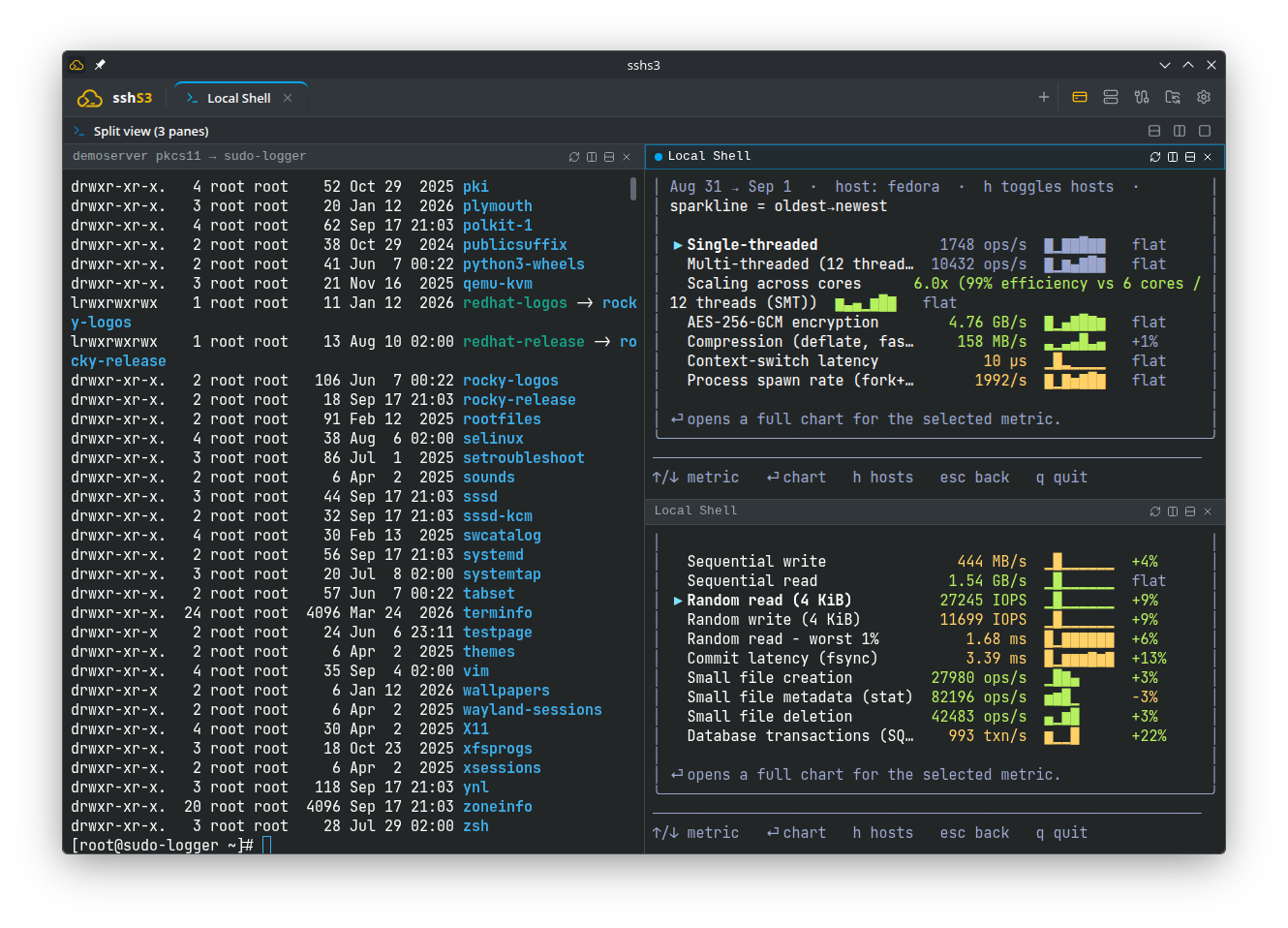
The terminal engine in sshs3 pairs hardware-accelerated web rendering via xterm.js with your operating system's native OpenSSH client process via node-pty. Unlike clients relying on JavaScript SSH emulators, all native OpenSSH options, configuration files, smartcards, and command-line habits function identically to your standard terminal.
1. Native OpenSSH Engine via node-pty
Feature: Real OpenSSH Binary Execution
🎯 Purpose
Deliver 100% fidelity with the system OpenSSH stack (~/.ssh/config, ProxyCommand, Match directives, token agents, FIDO2, Kerberos/GSSAPI) without the regressions common to JavaScript reimplementations.
🛠️ How to Use
- Launch any SSH profile or press Ctrl+Shift+T to open a new terminal session.
- Features ANSI/VT100/VT220 emulation, 24-bit TrueColor, and mouse tracking (in
htop,mc,tmux,nvim). - Adjust font size on the fly per tab using Ctrl++, Ctrl+-, and Ctrl+0 (reset).
⚠️ Limitations & Caveats
- Requires an OpenSSH client binary (
ssh) accessible in system$PATH. - On Windows, the optional OpenSSH Client feature must be active (enabled by default in Windows 10/11).
⚙️ Technical Internals & Architecture
SSHPtyManager (src/main/ssh/SSHPtyManager.ts) allocates a pseudo-terminal (PTY) via native C++ bindings provided by node-pty. It invokes ssh in an isolated session. Data streams pass through Electron IPC (IPC_CHANNELS.TERMINAL_DATA, IPC_CHANNELS.TERMINAL_WRITE, IPC_CHANNELS.TERMINAL_RESIZE).
2. Konsole-Style Recursive Split Panes
sshs3 implements non-destructive recursive pane splitting modeled on KDE's Konsole (ViewSplitter):
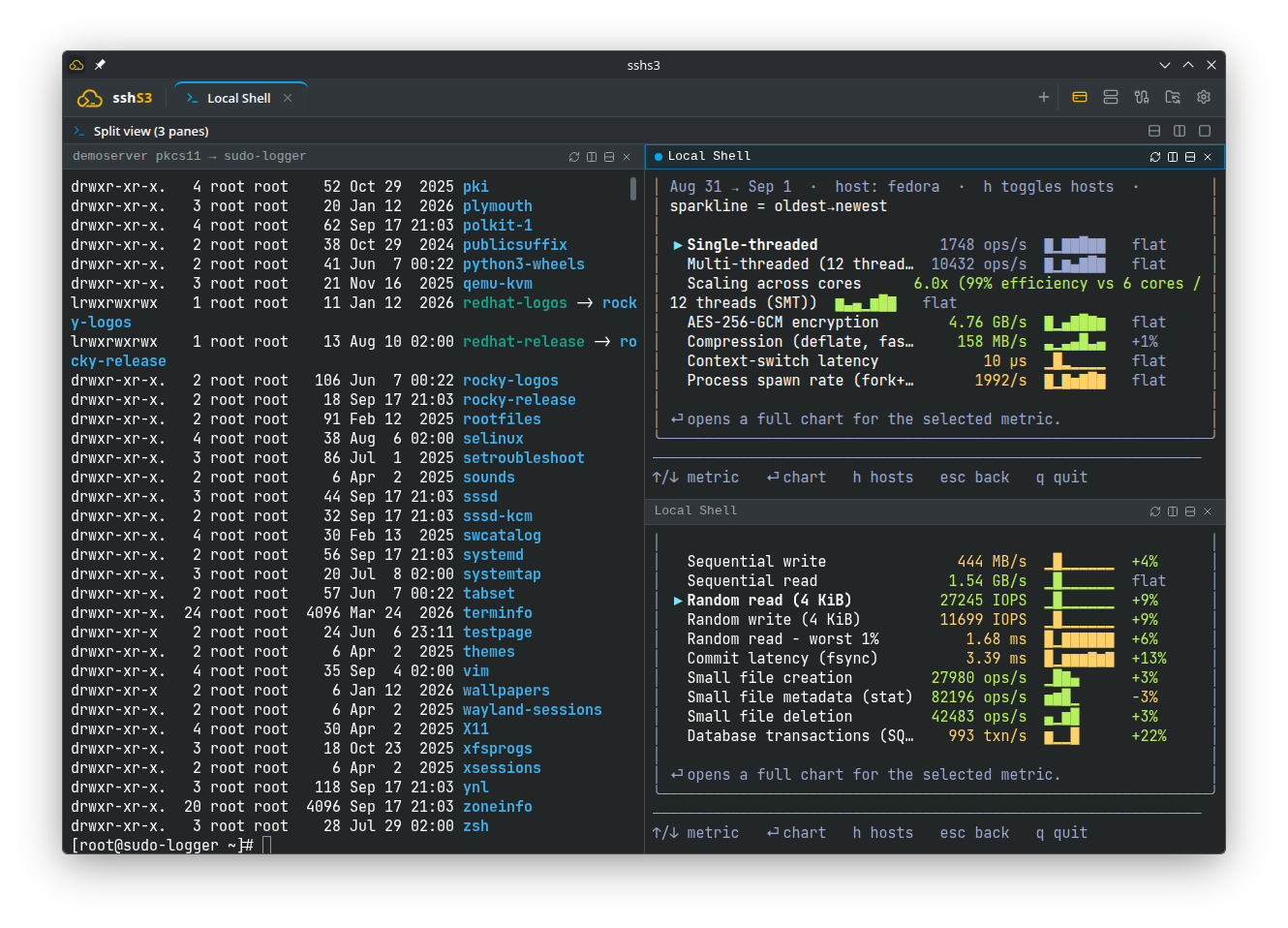
Feature: Non-Destructive Split Layouts
🎯 Purpose
Allow operators to split workspace real estate horizontally and vertically without disrupting existing sessions, interrupting running background commands, or losing scrollback buffers.
🛠️ How to Use
- Split Vertically: Press Ctrl+Shift+D or click the vertical split icon on the pane's mini-toolbar.
- Split Horizontally: Press Ctrl+Shift+E or click the horizontal split icon.
- Keyboard Navigation Between Panes:
- Directional Spatial Navigation (Ctrl+Shift+Arrow Keys): Shifts focus in the direction of the arrow. Pressing Ctrl+Shift+Up from the top row moves focus directly into the Tab Bar (where Left/Right switches active tabs, and Down or Enter returns focus into the active terminal pane). - Sequential Cycling: Use Ctrl+Shift+N (next pane in tree) and Ctrl+Shift+P (previous pane).
- Close a Pane: Click the close button on its mini-toolbar or type
exit. The tree automatically collapses to fill the remaining area. - Unsplit (Maximize): Click the "Unsplit" icon on the active pane to keep the focused session and close all siblings.
⚠️ Limitations & Caveats
- Splitting a terminal too many times on smaller displays can reduce column width below 40 characters, causing line wrapping in wide tabular tools.
- Each pane runs an independent SSH or shell process with its own memory allocation.
⚙️ Technical Internals & Architecture
Splitting a pane does not recreate or restart the underlying PTY session. The active DOM node is reparented into a new split container within React's layout tree (SplitTree.tsx), leaving the underlying Node.js PTY process completely uninterrupted.
3. Local Shells & Intelligent SSH Agent Management
In addition to remote SSH hosts, sshs3 allows opening local terminal tabs executing directly on your workstation (bash, zsh, fish, pwsh, WSL).
Feature: Managed SSH_AUTH_SOCK Injection & AgentLifecycleManager
🎯 Purpose
Provide integrated access to local workstation shells with immediate single sign-on access to smartcards, YubiKeys, and SSH keys already unlocked within sshs3.
🛠️ How to Use
Configure the Local Terminal SSH Agent behavior under Settings → Terminal:
- Auto (Default): If Global PIN caching is active, local shells automatically inherit the app-wide
AppAgentsocket. Unlocked smartcards and FIDO2 keys are instantly available for localgit,ssh, andterraformcommands! If Global caching is not active, it uses the system/login-shell agent, or starts an app-managed private agent. - System Only: Strictly inherits your existing desktop
$SSH_AUTH_SOCK(e.g. gpg-agent or systemd-user ssh-agent) and never starts an app agent. - Disabled: Wipes
SSH_AUTH_SOCKandSSH_AGENT_PIDcompletely from the spawned shell environment.
⚙️ Technical Internals & Architecture
AgentLifecycleManager probes for a running agent (or Windows OpenSSH Agent service). In auto mode under Global PIN caching, the app-wide agent (AppAgent) always takes precedence on a stable socket ($XDG_RUNTIME_DIR/sshs3/agent.sock or /tmp/sshs3-agent-). Because the socket path is stable, local terminal tabs opened before unlocking a smartcard can immediately use the card once unlocked without reopening the tab!
🛠️ How to Use
- Click the "+" icon in the tab bar and select Local Shell.
- Under Settings → Local Terminal SSH Agent, configure socket injection behavior:
- Auto (Default): Priority resolution order: (1) App-wide smartcard agent (AppAgent) under Global PIN caching, (2) App's managed agent process, (3) System inherited agent ($SSH_AUTH_SOCK), (4) Newly spawned managed agent. - System Only: Strictly uses the inherited environment socket; never spawns or overrides with app agents. - Disabled: Injects no SSH_AUTH_SOCK variable.
⚠️ Limitations & Caveats
SSH_AUTH_SOCKis resolved and injected at the moment the local process is spawned. A shell tab opened before a smartcard is unlocked will not inherit the card unless Global PIN caching was already active.
⚙️ Technical Internals & Architecture
Managed by AgentLifecycleManager (src/main/ssh/AgentLifecycleManager.ts). Under Global PIN caching mode, the socket points to AppAgent, a dedicated local socket proxy that multiplexes SSH signing requests directly through unlocked hardware cards.
4. Terminal Productivity & Ergonomics
4.1 Scrollback Buffer Search (Ctrl+Shift+S)
- Opens an overlay search bar with match count indicator (e.g.
3/6). Matches update dynamically as you type. - Step through occurrences forward with Enter and backward with Shift+Enter. Close the bar with Esc.
- Highlight colors adapt to the active theme (Breeze, Light, Dark). The active match is highlighted distinctly.
- Stepping through matches highlights text without triggering Copy-on-Select.
4.2 Clickable URLs and File Paths (Ctrl+Click)
Hold Ctrl (Cmd on macOS) and click:
- Web URLs: Any
http://orhttps://link opens in your workstation's default browser (supported in terminals and Kubernetes log streams). - Remote File Paths: Clicking a file or directory path in an SSH terminal (e.g.
/var/log/syslog,~/notes.md,/srv/app.py:42:7) immediately opens that folder in a new SFTP file manager tab!
- Because terminal emulators cannot distinguish directories from files without filesystem access, clicking a file path without a trailing slash opens its containing parent directory. - Tilde paths (~/) resolve automatically to /home/ (or /root). - The SFTP tab always connects using the pane's underlying profile credentials, even if you hopped to another host using ssh inside the terminal. - Note: Paths are not clickable in local shell or Kubernetes exec terminals.
4.3 Saved Command Snippets Palette (Ctrl+Shift+L)
- Searchable palette of pre-saved shell commands and runbooks.
- Enter types the command into the prompt; Ctrl+Enter types and executes it immediately. Multi-line snippets are pasted as an atomic batch.
- Manage snippets with New, pencil (edit), and bin (delete). Snippets can be scoped to the current profile or made globally accessible.
- Dynamic variables:
{{host}},{{user}}, and{{date}}(formatted asyyyy-mm-dd HH:mm). - Security Note: Snippets are saved unencrypted in
snippets.json. Do not store passwords or API secrets in snippets!
4.4 Copy Last Command Output (Ctrl+Shift+G)
- Copies the terminal output of the immediately preceding command without manual mouse selection.
- A toast notification confirms how many lines were copied to clipboard.
- Exact: In modern shells emitting OSC 133 semantic prompt marks (
fish, andzsh/bashwith shell integration). - Heuristic Fallback: In standard shells, infers command boundaries from Enter keypresses. Full-screen terminal programs (
vim,less,htop) are ignored.
4.5 Encrypted Clipboard History (Ctrl+Shift+R)
- When Copy text automatically on selection is enabled, every highlighted string is stored in an encrypted history ring.
- Press Ctrl+Shift+R or right-click to search and paste previous selections (↑/↓ navigate, Enter pastes).
- Shift+Insert and middle-click paste the latest entry.
- Encrypted at rest via the OS keyring (
safeStorage). If the OS keyring is unavailable, history is retained in volatile memory only. Can be scoped per connection or configured to purge on application exit.
4.6 Terminal Settings Reference Table
| Setting | Default | Purpose & Description |
|---|---|---|
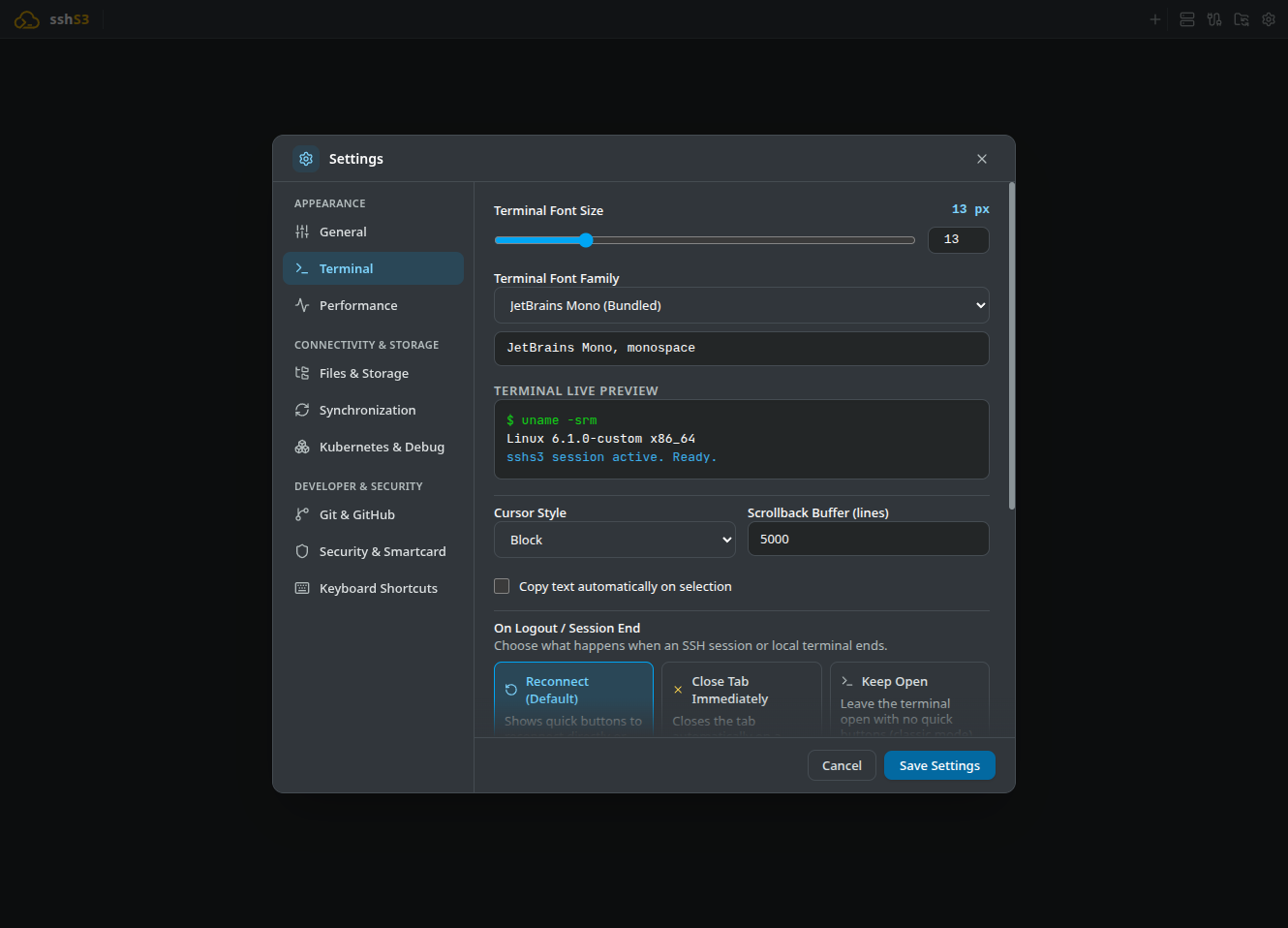
| Terminal Font Size | 13 | Base font size. Adjust dynamically with Ctrl++, Ctrl+-, Ctrl+0. |
| Terminal Font Family | Monospace stack | Select from curated monospaced fonts or enter a custom font name. |
| Cursor Style | Block | Visual cursor appearance: Block, Underline, or Bar. |
| Scrollback Buffer (lines) | 5000 | Retained terminal history per pane, searchable with Ctrl+Shift+S. |
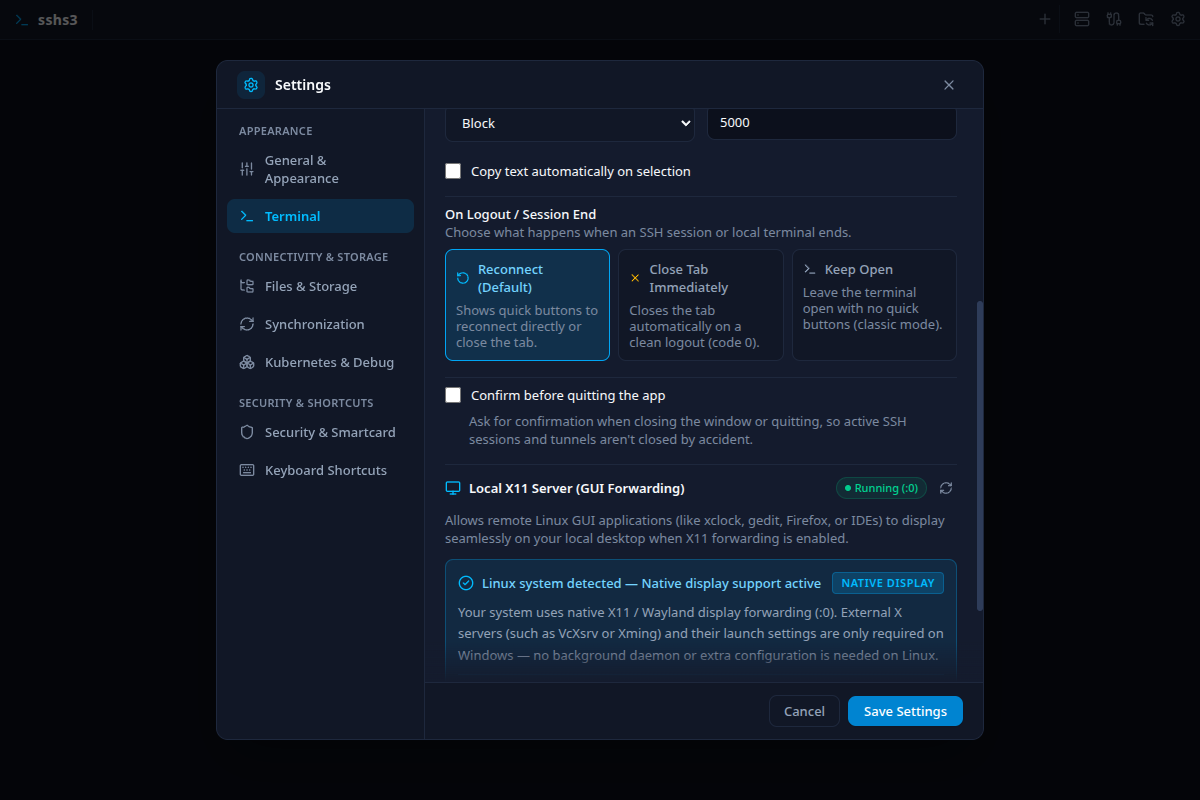
| Copy text automatically on selection | Off | Copies highlighted text to the clipboard and records it in encrypted clipboard history. |
| Clipboard history scope | Global | Share clipboard history across all sessions or isolate history per host. |
| Empty clipboard history on exit | Off | Automatically wipes the encrypted clipboard history when sshs3 shuts down. |
| On Logout / Session End | Reconnect | Action when an SSH session disconnects: Reconnect, Close Tab, or Keep Open. |
| Local Terminal SSH Agent | Auto | How SSH_AUTH_SOCK is populated in local shell tabs: Auto (uses unlocked app-wide agent AppAgent under Global PIN caching, otherwise system's/login-shell's agent, otherwise an app-spawned agent), System Only (only uses pre-existing system agent), or Disabled (deletes SSH_AUTH_SOCK). |
5. Troubleshooting & Diagnostics Runbook
| Symptom / Error Message | Probable Root Cause | Corrective Action |
|---|---|---|
| Terminal displays blank black screen | System exhausted available PTY descriptors | Check PTY availability via cat /proc/sys/kernel/pty/nr. Close unneeded sessions. |
| Swedish / non-ASCII characters display garbled | Mismatched locale or encoding on remote host | Run echo $LANG on the server. Ensure a UTF-8 locale is exported (e.g., export LANG=en_US.UTF-8). |
| Ctrl+Click on path does nothing | Path is relative or lacks a leading / or ~/ | Clickable filesystem paths must be absolute (/etc/...) or home-relative (~/...). |
| Clipboard history is empty | "Copy text automatically on selection" is disabled | Open Settings → Terminal and check Copy text automatically on selection. |